Stripe QuickBooks Integration: The End-to-End Playbook for Accurate, Automated Accounting
If your revenue flows through Stripe while your books live in QuickBooks, the gap between the two can become a daily drain: CSV exports, missing fees, deposits that never quite match, and month-end close that drifts into the next month. A thoughtful Stripe QuickBooks integration replaces that friction with dependable automation. This guide is authored by Engini, where we implement and audit Stripe→QuickBooks integrations for finance teams that need clean, reconcilable data. Sales, fees, refunds, disputes, and payouts arrive in your general ledger with consistent logic, so leaders see reality in near real time and finance teams spend their energy on analysis instead of rekeying.
This guide walks through the architecture that scales, the setup steps that prevent cleanup later, and the governance practices that keep your numbers audit-ready. Whether you’re a high-volume ecommerce brand, a subscription SaaS, or a services firm accepting card payments, you’ll finish with a clear plan to implement or improve your integration-today.
QuickBooks doesn’t natively sync Stripe. To connect them, use a third-party integration app (e.g., Engini ,Acodei, Commerce Sync, Synder) or use a CSV import as a fallback.
What “Stripe QuickBooks Integration” Really Means
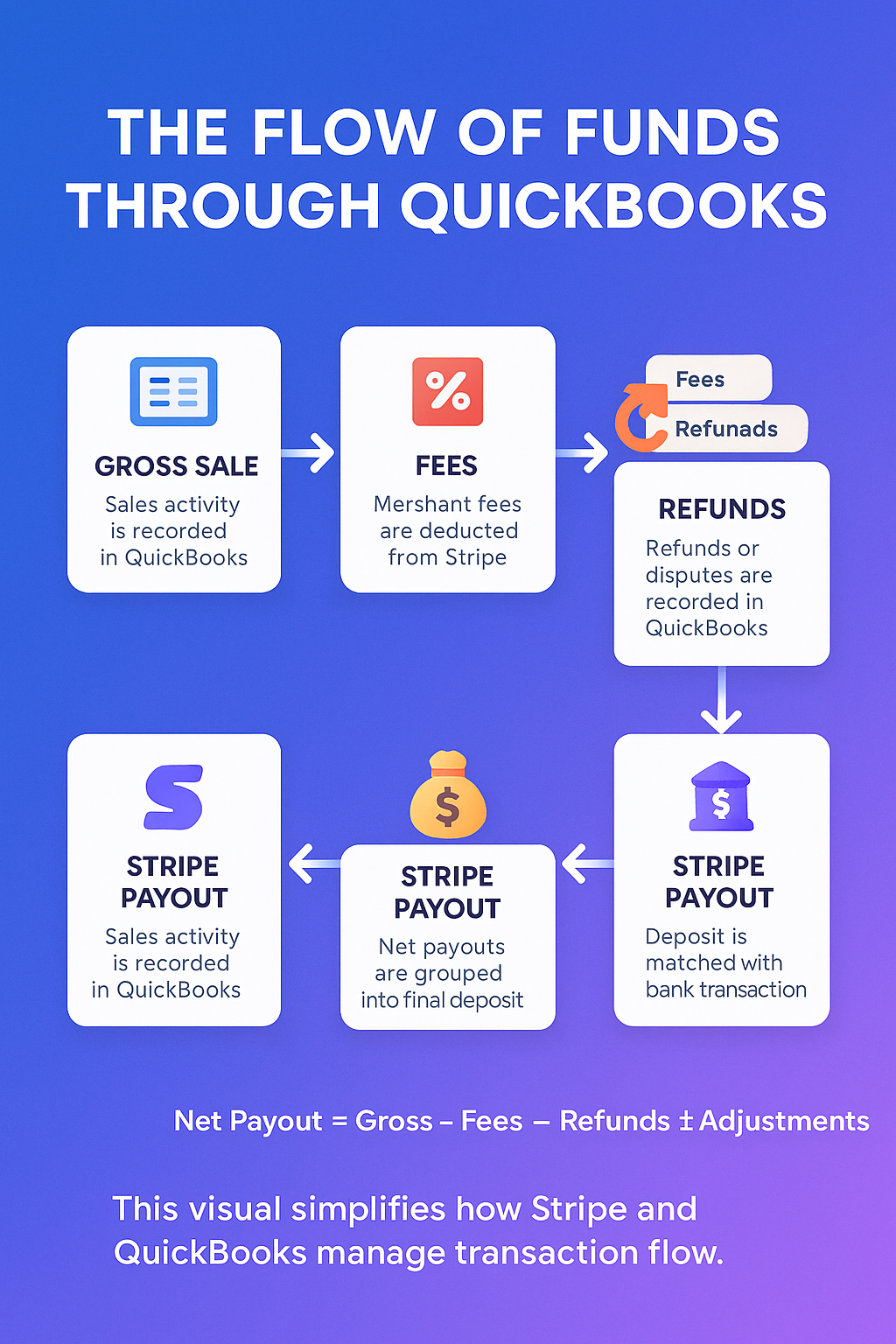
At a practical level, integration is the consistent translation of Stripe events into QuickBooks entries. Every charge should become recognizably gross revenue, every fee a merchant processing expense, every refund a contra revenue adjustment, and every payout a transfer from funds held at Stripe to your operating bank. When this is mapped well, QuickBooks becomes a faithful mirror of Stripe’s economics instead of a rough net-deposit approximation. That fidelity is what enables fast closes, straightforward audits, and confident cash planning.
The Accounting Architecture That Makes Reconciliation Simple
The single design choice with the biggest downstream benefit is adding a Stripe Clearing account in QuickBooks (a bank-type account representing funds that Stripe holds between charge and payout). Think of it as a waiting room for money. On Stripe charges, book gross to Clearing account, fees reduce it and payouts transfer net to your bank. After each payout window closes, the clearing account should approach zero. If it doesn’t, the residual balance points directly to what’s missing-usually a fee, a refund, or a timing difference.
This structure mirrors cash reality and compresses reconciliation work. Instead of trying to match dozens of daily sales to a single bank deposit, you match one payout transfer to one bank line and confirm that the clearing account nets out. It’s simple enough for small teams and durable enough for high-volume merchants.
Choosing an Integration Approach
The market offers a spectrum of ways to connect systems. The right pick depends on volume, multi-currency exposure, subscription complexity, and your reporting requirements.
Basic or native connectors start quickly and often have minimal configuration. They suit micro-merchants or very simple flows but can over-summarize or omit fee/refund detail. Over time, that shortcut becomes a manual cleanup burden because bank deposits and ledger entries stop lining up cleanly.
Specialized accounting integrators are designed to handle the real world: daily summary vs. transactional sync, separate posting of fees, taxes, tips, and discounts, creation of the clearing account, and multi-currency journals when needed. They also help with historical backfills and error handling. For most growing businesses, this path offers the best balance of control, accuracy, and maintainability.
Manual imports (CSV/IIF) remain a niche choice for catch-up accounting or very low volumes. They give total control but at the cost of time, consistency, and auditability. As soon as transaction counts rise, manual methods become a liability.
Setup: Connect & Reconcile
A successful Stripe QuickBooks integration is less about a magic toggle and more about careful preparation. The following flow keeps you out of cleanup mode:
Step 1 – Prepare your chart of accounts.
Create a bank-type Stripe Clearing account to represent funds in transit. Add Merchant Processing Fees (expense), Sales (income), Returns & Allowances (contra revenue), and Sales Tax Payable (liability). If you see frequent disputes, include a Chargeback Fees expense account for clarity.
Engini tip: create ‘Stripe Clearing (Bank)’, ‘Merchant Processing Fees’, ‘Returns & Allowances’, ‘Sales Tax Payable’, and (if needed) ‘Chargeback Fees’.
Step 2 – Connect your integration tool.
Authorize Stripe and QuickBooks. Confirm what the tool will create (sales receipts, deposits, journal entries) and how it names records. Write down the naming conventions so future reviewers understand the logic.
Step 3 – Choose granularity.
High-volume merchants often prefer daily summaries per currency for performance while preserving accuracy. B2B or subscription-heavy companies may choose transaction-level sync to preserve customer detail for AR workflows and dispute documentation. Some teams adopt a hybrid: summarized sales with line-item detail only for refunds and disputes.
Step 4 – Map Stripe events to accounts.
Post charges to Sales (offsetting Stripe Clearing), fees to Merchant Processing Fees (offsetting Stripe Clearing), refunds to Returns & Allowances, tax to Sales Tax Payable, and payouts as transfers from Stripe Clearing to your bank. If QuickBooks Classes/Locations are part of your reporting, map them from Stripe metadata-but only if your data hygiene is solid.
Step 5 – Pilot a small date range.
Sync three to seven days. Compare Stripe totals to QuickBooks: gross sales, refunds, fees, and net payouts. Ensure each bank deposit matches a transfer and that the clearing account nears zero after a payout window. Fix mismatches now, before importing months of history.
Engini Tip: only turn on auto-sync after a 3–7 day pilot reconciles to zero in clearing.
Step 6 – Turn on auto-sync and monitor exceptions.
Enable automation. Review an error queue or activity log weekly, reconcile bank accounts, and scan the clearing account for lingering balances. Small weekly checks prevent large monthly surprises.
Handling Edge Cases Without Breaking Your Books
Real-world sales aren’t tidy, so your integration must be ready for the messy bits: refunds, disputes, multi-currency, and taxes. The aim is not to eliminate complexity but to push it into predictable, reviewable places. Our Engini Edge-Case Playbook treats refunds, disputes, and multi-currency as distinct events so fee economics stay visible and auditable.
Refunds often do not reverse processing fees. Map refunds to contra revenue and keep fees in the expense account. That way, your effective processing rate remains visible and margins aren’t overstated. Disputes involve both a reversal of funds and additional fees; treat them as distinct events so you can measure dispute rate and cost over time. For multi-currency flows, decide whether to journal in the charge currency with later FX on payout, or to journal at the converted amounts. Consistency matters more than the specific policy, provided you disclose your approach in documentation.
Sales tax deserves its own lane. If you collect tax, route it to a liability account instead of income. If you rely on a tax engine (Stripe Tax, Avalara, TaxJar), decide whether detailed tax lines should live in QuickBooks or be summarized there while detail remains in the tax platform. The more jurisdictions you serve, the more a summarized liability with strong documentation pays off.
Governance, Controls, and Documentation
A credible accounting system is built not only on correct entries but on repeatable processes. Treat your Stripe QuickBooks integration as a controlled system:
Highlights you should implement
- – Access controls: Limit admin rights in QuickBooks and Stripe; grant your connector least-privilege access.
- -Change management: Keep a short, versioned doc with your mapping tables, account IDs, and naming conventions.
- – Audit trail: Favor connectors that attach links or IDs back to the Stripe charge/payout so reviewers can trace any amount to source.
- – Data retention: Decide how long to retain detailed transaction data in accounting vs. in Stripe exports, then apply that policy consistently.
These practices demonstrate expertise and trustworthiness to auditors, lenders, and leadership-and they make onboarding new team members faster.
Tool Selection: Fit by Scenario
No single tool wins every scenario. Think in terms of fit rather than brand.
For multi-channel retailers that sell on marketplaces and DTC, an integrator that handles multiple data sources and inventory signals is valuable. For SaaS companies with subscription complexity, look for reliable handling of recurring payments, refunds, and proration, plus the ability to post to deferred revenue if needed. For professional services, simplicity and clean invoice/payment mapping can matter more than inventory features. When you shortlist tools, run a one-week pilot with your actual data, then compare support responsiveness, the clarity of their audit trail, and how easy it is to unwind or correct entries if something mis-posts.
Performance Tips for High-Volume Environments
As transaction counts climb, the wrong configuration can slow QuickBooks or bury insights beneath noise. Keep the system fast and readable by favoring daily summary journals for sales/fees, reserving transaction-level detail for exceptions like refunds or disputes where traceability matters most. Limit automatic customer creation if you don’t need AR workflows; in summary mode, customers add little value and many objects. Archive products and services you no longer sell to reduce dropdown clutter. Finally, avoid over-using QuickBooks bank rules to “fix” integration entries; let the connector create consistent, reconcilable records and reserve bank rules for truly external items.
Troubleshooting When Numbers Don’t Match
Even with excellent mapping, mismatches happen. The good news is that a clearing account turns detective work into a short checklist. If a bank deposit doesn’t match, look up the payout ID in Stripe and trace the corresponding transfer entry in QuickBooks; the amounts should be identical even if dates differ by a day due to bank timing. If the clearing account holds a residual balance after payout, the usual culprits are missing fees, a late-posted refund, or partial-currency conversions. Compare the Stripe activity for that window to the connector’s journal and adjust the date filter before concluding entries are missing. When duplicates appear, pause auto-sync, roll back the affected window (many tools offer a rollback), and re-import with corrected settings.
KPIs Unlocked by a Clean Integration
With dependable automation, you can finally monitor the levers that drive decisions. Track gross vs. net revenue by day and channel to spot pricing and promo effects. Watch the effective processing rate over time; surfacing card-mix changes can prompt negotiations or checkout optimization. Monitor refund and dispute rates by product and customer segment to guide policy. Measure cash conversion timing-the lag between sale and funds deposited-to manage working capital. And review sales tax payable against remittances to ensure filings remain on schedule and complete.
Conclusion
A resilient Stripe QuickBooks integration is more than a connector; it is an accounting design that reflects how cash actually moves. Centering your system on a Stripe Clearing account, mapping events with care, piloting a small window, and monitoring exceptions weekly keep your books both fast to close and easy to audit. When the mechanics are right, finance can step away from manual posting and toward analysis that improves pricing, risk, and cash management.
Call to action: If you’re implementing this from scratch or untangling a legacy setup, adopt the steps above in order: create the accounts, map events, run a week-long pilot, and only then turn on auto-sync. If you’d like a mapping template tailored to your COA, Engini can adapt this blueprint to your volume and tax footprint.
FAQ
Does Stripe integrate with QuickBooks?
Not natively. You’ll need a third-party connector or a CSV import workflow.
Do I need Stripe if I have QuickBooks?
QuickBooks is your accounting system; Stripe is your payment processor. Use both—then sync or import data into QBO.
Can I use Stripe for bookkeeping?
Keep bookkeeping in QuickBooks. Use a connector to bring Stripe transactions, fees, and payouts into QBO.
How should I record Stripe fees in QuickBooks?
Post them to a Merchant Processing Fees expense account so your margins aren’t overstated.
Like what you see? Share with a friend.
Itay Guttman
Co-founder & CEO at Engini.io
With 11 years in SaaS, I've built MillionVerifier and SAAS First. Passionate about SaaS, data, and AI. Let's connect if you share the same drive for success!
Share with your community




.png)
Comments