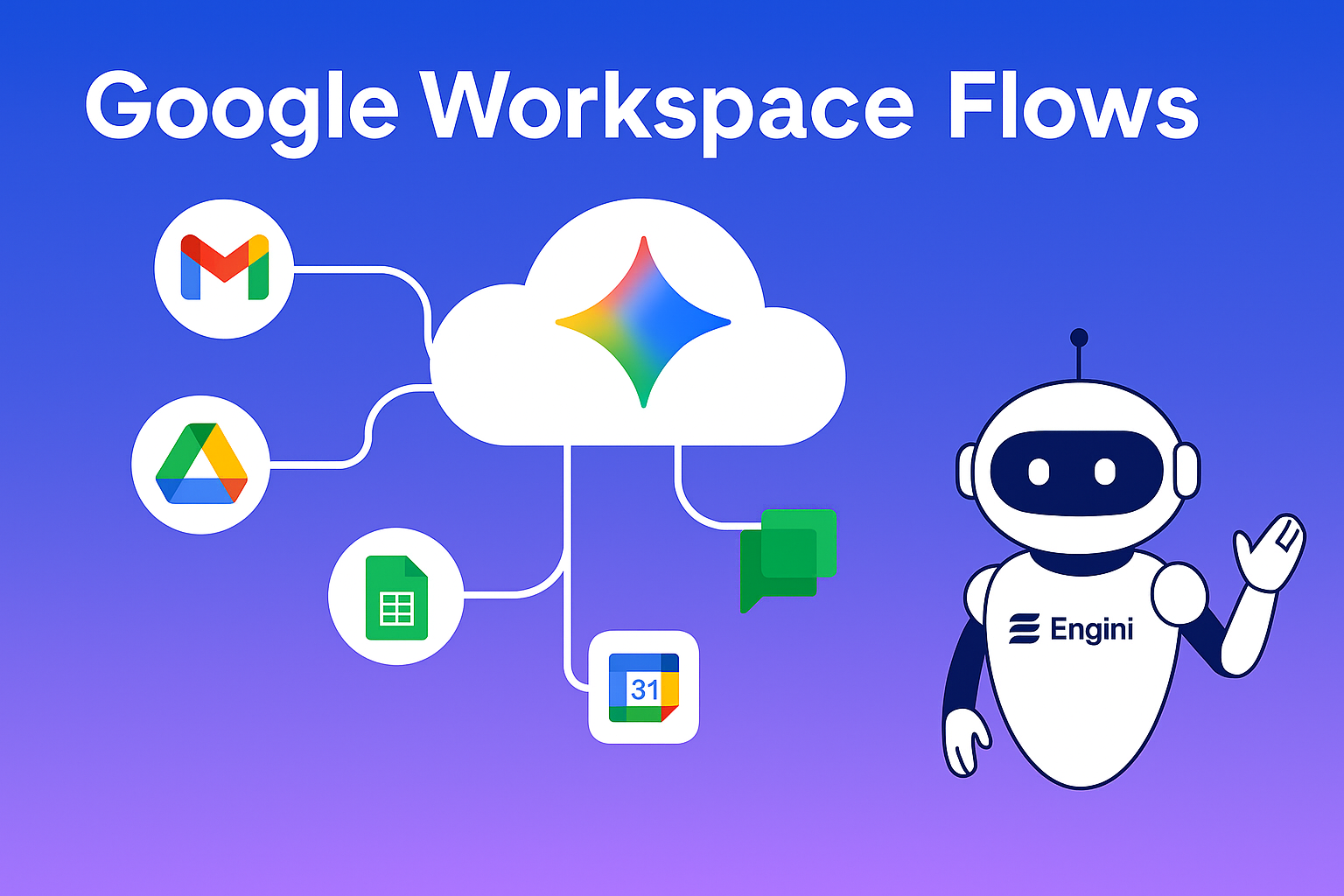
Google Workspace Flows: The Practical Guide to Agentic Automation Inside Gmail, Docs, Sheets & More
“Google Workspace Flows” is quickly becoming a breakout search term because it promises something teams have wanted for years: native, secure, no-code automation that lives inside the tools people already use every day-Gmail, Docs, Sheets, Drive, Calendar, Meet, and Chat. Unlike earlier trigger-action automations, Flows introduces AI “agents” that can read context, reason across documents, and take steps on your behalf. That shift-from simple rules to AI-assisted workflows-has big implications for operations, IT, finance, HR, sales, and support.
What is Google Workspace Flows?
Google Workspace Flows is a new automation capability designed to orchestrate multi-step processes across Workspace apps with help from Gemini, Google’s AI model family. Where traditional automations pushed data from point A to point B when a trigger fired, Flows adds an intelligent layer: it can summarize long email threads, extract entities from documents, draft content in Docs, decide which branch to follow, and perform actions across Gmail, Drive, Sheets, Chat, and Calendar-all inside the Workspace environment.
Two ideas set Flows apart:
- Agentic AI in the loop. Instead of static “if-this-then-that,” Flows lets AI interpret intent, reason about context, and generate or validate outputs before the next step runs.
- Native to Workspace. Admins and business users build inside a no-code interface that sits alongside the apps they already use. That reduces context switching, speeds adoption, and keeps governance under familiar Workspace controls.
Bottom line: Flows aims to make “automate this for me” a first-class experience within Gmail, Docs, Sheets, Drive, and Chat.
How Google Workspace Flows Works
Think of a Flow as a guided conversation plus a canvas. You describe the outcome in natural language; Flows proposes a structure; you edit the steps. Building blocks typically include starters (what kicks things off), conditions (logic and branching), and actions/functions (the concrete operations to perform), along with AI steps powered by Gemini.
Starters. Examples include applying a Gmail label, the arrival of a new row in Sheets, a file being added to a Drive folder, or a specific reaction in Chat. Each starter anchors the automation to a tangible event and provides the initial context the AI can build on.
Logic. Branching can check extracted fields, user roles, dates, or file properties. An AI classification step can score or label content to guide which branch to follow, making the decision path transparent.
Actions. Typical actions send email, post to Chat, write to Sheets, create Docs from templates, move or rename files in Drive, schedule Calendar events, or request approvals. Actions are deterministic and auditable.
AI steps (Gems). Gemini can summarize, draft, classify, translate, extract, or review content. You can constrain outputs with explicit rubrics and examples so results are consistent across runs.
Because Flows is native, it inherits Workspace permissions and data boundaries. Automations run under organizational policies, audit logs, and DLP-crucial when AI is touching customer or financial data. You still define who can build, run, and edit flows, but you’re not shipping data to yet another external system by default.
Ideal Use Cases You Can Launch Fast
Early wins tend to be “high-frequency, medium-complexity” processes-work that happens daily or weekly and benefits from AI’s ability to summarize, classify, and draft, while also moving data between apps.
- – Email triage and case intake. Inbound messages are classified by product, urgency, and sentiment; key details are extracted to a Sheet; Gemini produces a concise summary; a Chat update routes the case to the right queue.
- – Approvals and content reviews. Draft a proposal in Docs, request approval via Chat or Email, summarize comments, version the final artifact in Drive, and notify stakeholders when the decision is made.
- – Sales handoffs. Pull highlights from discovery notes, update a spreadsheet or connected CRM, schedule next steps on Calendar, and generate a customer‑ready recap in Docs.
- – Onboarding (employee or customer). Create Drive folders, spin up personalized checklists, add events, and send tailored messages-Gemini adapts tone and content by role or plan.
- – Finance and back office. Parse invoice emails, extract totals to a Sheet, flag anomalies with a review step, and file PDFs to Drive using consistent naming conventions.
These scenarios keep data within Workspace while letting AI shoulder the cognitive grunt work.
Which automation tool should be used for specific workflow needs?
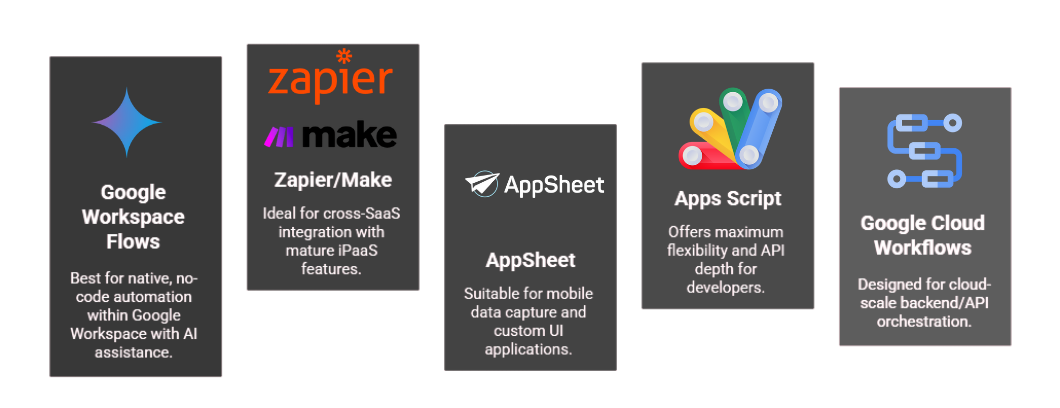
Choose the right automation tool Workspace-only no-code (Flows) to pro-code back-end (Cloud Workflows)
Google Workspace Flows vs. Alternatives (What You Need to Know)
Against third‑party iPaaS (Zapier/Make). If your goal is broad cross‑SaaS connectivity, iPaaS tools shine. If your processes live mostly inside Workspace, Flows lowers friction: build where the work happens, keep data under Workspace governance, and let Gemini boost quality. Many teams will keep both: Flows for “inside‑Workspace” processes; iPaaS for long‑tail connectors.
Against Apps Script. Script wins on flexibility and developer control. Flows wins on speed-to-value and accessibility for non‑developers. A common pattern is to reserve Apps Script for reusable libraries or niche integrations and use Flows for day‑to‑day department automation.
Against AppSheet. AppSheet is for building applications-custom forms and UIs-often on top of Sheets/SQL. Flows is for process orchestration with AI inside core Workspace apps. They complement each other.
Against Google Cloud Workflows. Cloud Workflows lives in GCP to orchestrate services and APIs; Flows lives in Workspace to orchestrate end‑user processes. You can connect them via secure intermediaries: a Flow triggers a server‑side job; the backend signals completion; the Flow continues with human steps in Gmail/Docs/Chat.
Building Your First Flow (Step‑by‑Step)
- Choose a crisp, worker‑visible outcome. For example: “When a prospect fills a form and an SDR replies, create a Deal Notes doc, summarize the thread, and post a Chat update.”
- Map data sources and actors. Identify Gmail labels, Sheets ranges, Drive folders, and Chat spaces. List approvers and recipients with their roles.
- Draft the flow in natural language. Describe the desired sequence in the builder, let Flows propose a structure, then refine starters, conditions, and actions.
- Insert AI steps where judgment helps. Use Gemini for summaries, classifications, drafts, translations, and extractions. Constrain outputs with purpose, audience, tone, length, and required fields.
- Pilot with a small group. Watch for edge cases such as attachments, time zones, special labels, and file permissions. Gather feedback and iterate quickly.
- Harden for production. Add error‑handling branches and notifications. Standardize templates and naming conventions. Confirm least‑privilege access to Drive files and Sheets ranges.
- Measure impact. Track time saved, response SLAs, cycle times, and error rates; report results to stakeholders.
Pro tip: Keep a “Flow Library” folder in Drive with a short runbook (what it does, owner, inputs/outputs, SLAs, known caveats). This avoids duplication and helps with audits.
Designing AI Steps (What Good Looks Like)
A frequent failure mode is dropping a generic AI step in the middle of a brittle process and hoping it “just works.” Strong AI steps are precise, testable, and consistent.
- – Constrain inputs and outputs. Provide the goal, audience, tone, and length. For extraction, list exact fields and formats (for example, JSON with explicit keys). Include positive and negative examples so the model understands boundaries.
- – Layer checks. After Gemini drafts, run simple validations such as length limits, required keywords, or regex patterns. Optionally add a second AI review step with a stricter rubric before anything customer‑facing is sent.
- – Keep humans in the loop where it counts. Approvals, policy decisions, and high‑risk messages benefit from a quick human review. Make it easy to accept, edit, or reject outputs.
- – Standardize artifacts. Use Drive templates and predictable folder structures so downstream steps can rely on consistent layouts and names.
- – Plan for drift. Prompts and data evolve. Schedule quarterly reviews of prompts, examples, and outputs to maintain quality.
Governance, Change Management, and Trust
Enterprises favor Workspace for collaboration because of its identity, sharing controls, and DLP posture. Flows rides on this foundation. Still, governance deserves intentional design.
Ownership. Assign owners per flow and per function; they are accountable for accuracy, uptime, and compliance.
Access and permissions. Test with least‑privilege service accounts or delegated permissions and document any exceptions.
Audits and logs. Centralize errors, approvals, and major changes. Maintain a simple change log in a shared Doc.
Training and enablement. Run short, role‑based sessions: builders (30–60 minutes), approvers (15 minutes), and end users (10–15 minutes focused on what changes for them).
Risk tiers. Classify flows by risk (low, medium, high). For medium/high tiers, require human review, additional validations, and periodic audits.
Change management matters as much as the tech. Celebrate early wins, sunset duplicate flows, and publish a simple request form so teams ask for automations instead of spawning shadow copies.
Measuring ROI (and Avoiding Vanity Metrics)
Automation ROI becomes clear only when you compare against a defined baseline. Establish the “before” and the target “after,” then revisit monthly.
- – Cycle time. Case assignment latency and approval turnaround.
- – Touches reduced. Emails per case and handoffs per process.
- – Quality. Error rates and adherence to templates or checklists.
- – Contributor hours saved. Time by role, per month.
- – Business outcomes. Conversion rate, time‑to‑cash, CSAT, renewal likelihood.
Tie each metric to an owner and a Sheet or dashboard. For example: “Reduce new‑hire onboarding doc prep from 45 minutes to 5 minutes with zero folder‑structure errors; track weekly in the Onboarding Ops sheet.”
Common Pitfalls (and How to Prevent Them)
- – Flow sprawl. A dozen versions of the same intake process proliferate. Fix with a shared library, clear naming, and version tags.
- – Prompt brittleness. Vague prompts create inconsistent outputs. Use instructions, examples, and validation checks to stabilize quality.
- – Permissions pain. The flow can’t read a file or send an email as intended. Run a permissions audit before go‑live and test with non‑owner accounts.
- – Over‑automating. Not every task benefits from AI. Keep humans in the loop for complex judgment calls and policy‑sensitive steps.
- – Misplaced tooling. Use Workspace Flows for end‑user processes and cloud/backend tools for microservices and API orchestration.
Pricing & Availability (What We Know)
Workspace AI features and access tiers evolve. Expect Flows to follow a staged rollout pattern, with capabilities expanding over time and some features tied to certain plans or add‑ons. Confirm current availability with your Workspace admin, reseller, or the official Workspace product updates blog. Plan your rollout with opt‑in pilots and clear communication so teams know when to expect new capabilities.
Real‑World Examples to Model
- – IT helpdesk intake. New emails to help@ labeled “Hardware” trigger a flow that extracts device/model, checks warranty details in a Sheet, drafts a reply with next steps, and posts a summary in a Chat queue. The agent can add context or reassign with a quick reaction emoji to continue the flow.
- – Quarter‑end finance close. The flow gathers missing invoices from a Drive folder, summarizes gaps, pings owners in Chat, and compiles a checklist in a Sheet. A weekly cadence email includes a Gemini‑generated narrative of what’s left.
- – RFP response center. A sales engineer drops customer requirements into a Doc; Gemini drafts a response using approved snippets, then routes for legal review and final delivery. The final pack is versioned in Drive and shared to the account team via Chat.
- – Customer success renewals. Ninety days before renewal, a flow assembles health metrics from Sheets, drafts a success plan in Docs, schedules a call on Calendar, and posts a concise summary to the account’s Chat space.
Conclusion
Google Workspace Flows brings agentic, AI‑assisted automation right where your teams already work. If your organization runs on Gmail, Docs, Sheets, Drive, and Chat, Flows is likely the fastest path to shaving hours off recurring processes without asking everyone to learn yet another tool. Start with a narrow outcome, keep prompts tight, add a review step where it matters, and measure before‑and‑after. Within a few sprints you’ll have a reusable library of flows that quietly accelerate your business.
FAQ: Google Workspace Flows
How do I use Google Workspace Flows?
Start with a Starter (e.g., Gmail label), add logic like Decide/Check if, then Actions and an AI step (Gem). Publish the flow and use run logs to monitor and fix failures.
Does Google Workspace already have workflows how is Flows different?
Rules and filters are single-step automations. Flows provides a visual canvas with branching and AI steps (Gems) to orchestrate multi-app processes across Workspace.
What’s the difference between Gemini, Gems, and Flows?
Gemini is Google’s AI model family. Gems are customizable AI agents you can use in Workspace and inside Flows as AI steps. Flows is the orchestration layer that sequences steps and logic.
Can Flows connect to non-Google tools?
Google has indicated expanding extensibility so Flows can reach third-party tools. Options will grow over time check your admin settings and release notes.
Is there a waitlist or eligibility requirement?
Workspace Flows is rolling out in an alpha program. Availability varies by Workspace edition and admin settings for Gemini/preview features ask your administrator.
Like what you see? Share with a friend.
Itay Guttman
Co-founder & CEO at Engini.io
With 11 years in SaaS, I've built MillionVerifier and SAAS First. Passionate about SaaS, data, and AI. Let's connect if you share the same drive for success!
Share with your community


.png)
Comments