The Notifications section in Engini allows you to define specific rules to alert you via email about critical workflow events, such as failed or blocked workflows.
In this guide, we’ll explain the purpose and usage of each notification type.
Note: You will have four default rules, one of each. You can edit them, but not delete them. The Workflow Error rule is set to run daily.
Getting started #
- Click on the settings icon located in the lower side of the left side bar.

- Click on the “Notification” section.

Adding Rules #
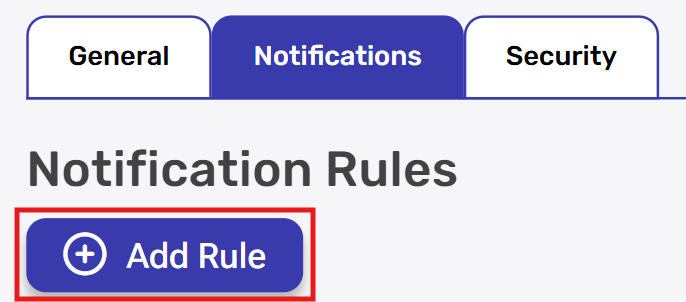
- Click on “Add Rule” .
- Choose the type of the Rule you want to add.
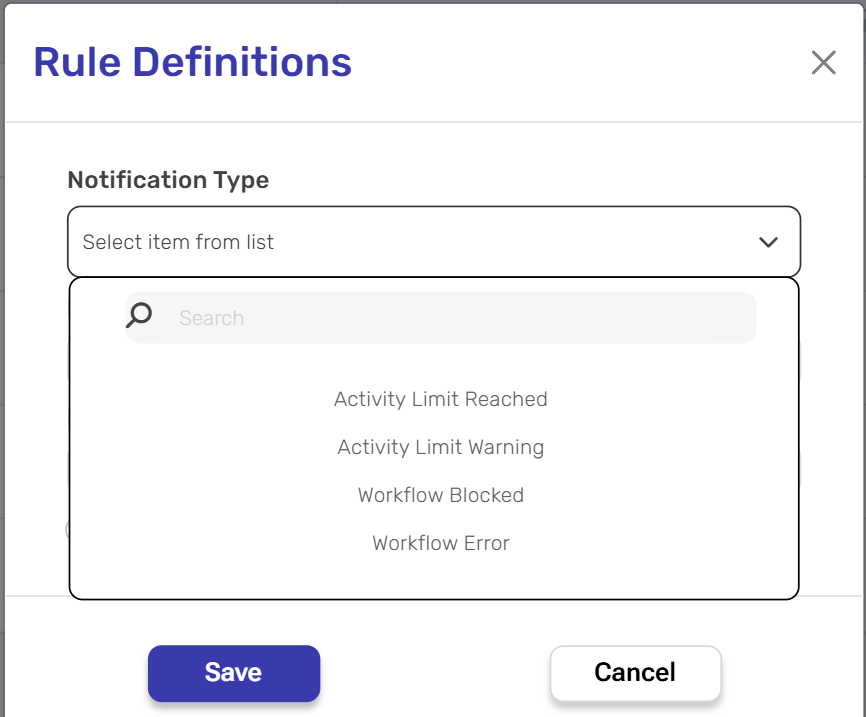
Let’s dive in and explain them into details.
Activity Limit Reached #
When your account reaches its monthly activity limit, an email notification is sent to the designated recipients, informing them that the limit has been reached and offering upgrade options for additional activities. The workflow will be blocked once the allowed activity limit is reached.
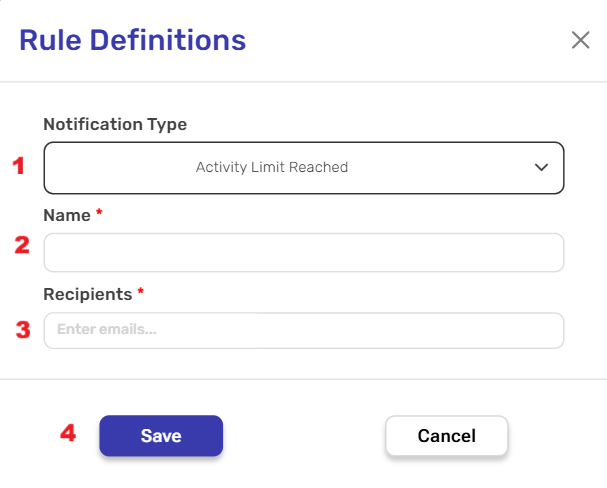
- Notification Type
From the drop-down list, select Activity Limit Reached. - Name
Enter a descriptive name for the rule. This will help you identify it later. - Recipients
Provide one or more email addresses that should receive the notification. - Save/Cancel
- Click Save to apply the rule and activate notifications.
- Click Cancel to discard changes and close the window.
Note: Activity usage tracking is automatically reset at the beginning of each month.
Activity Limit Warning #
When your account reaches a specified percentage of its monthly activity allowance, an email alert is sent to designated recipients as an early warning before hitting the limit. This proactive notification allows time for account management decisions before reaching the limit.
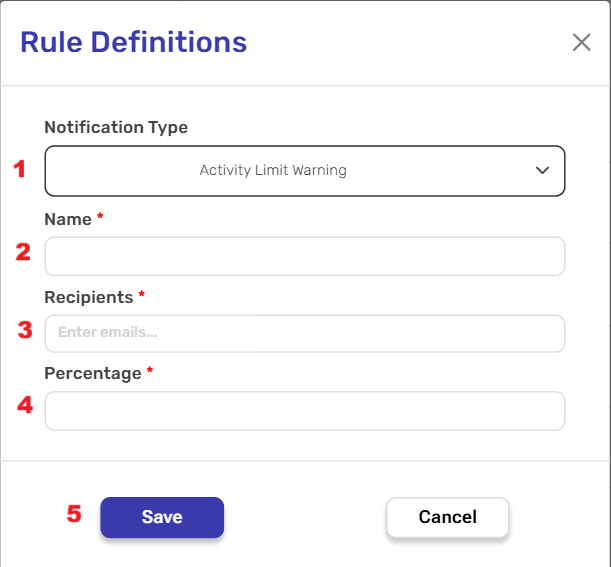
- Notification Type
From the drop-down list, select Activity Limit Warning. - Name
Enter a descriptive name for the rule. This will help you identify it later. - Recipients
Provide one or more email addresses that should receive the notification. - Percentage
Enter the percentage threshold that will trigger the warning. For example, entering “90” will send an alert when you’ve consumed 90% of your monthly activity allowance. - Save/Cancel
- Click Save to apply the rule and activate notifications.
- Click Cancel to discard changes and close the window.
Workflow Blocked #
According to your Consecutive Failures Limit, if a workflow fails consecutively up to that limit, an email will be sent to the selected address, and any subsequent workflows will be set to ‘Pending’ status.
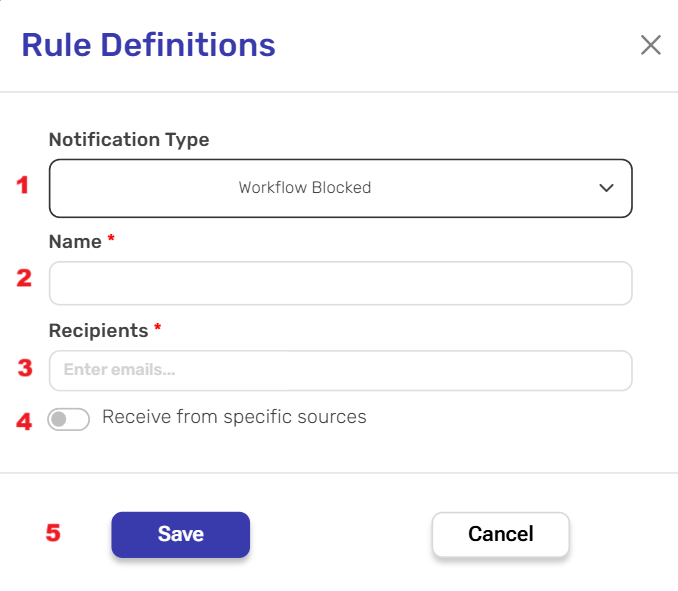
- Notification Type
From the drop-down list, select Workflow Blocked. - Name
Enter a descriptive name for the rule. This will help you identify it later. - Recipients
Provide one or more email addresses that should receive the notification. - Recieve from specific sources
Toggle this option on to apply the rule only to specific workflows.
By doing so, blocking and notifications about it will be limited to the selected workflows rather than all workflows in the system.
If this option is left off, the rule will apply to all workflows by default.
- A list of your workflows will appear, allowing you to select one or more workflows from the dropdown.
- Use the search bar to quickly find a workflow by name.
- Save/Cancel
- Click Save to apply the rule and activate notifications.
- Click Cancel to discard changes and close the window.
Note: you are able to unblock your workflow by clicking on the unblock button which located in workflow details.
Workflow Error #
Based on your configured notification period, email notifications containing error details will be delivered to your chosen recipients whenever workflow failures happen, enabling you to promptly detect and address problems. The workflow will continue to run and won’t be blocked by these notifications.
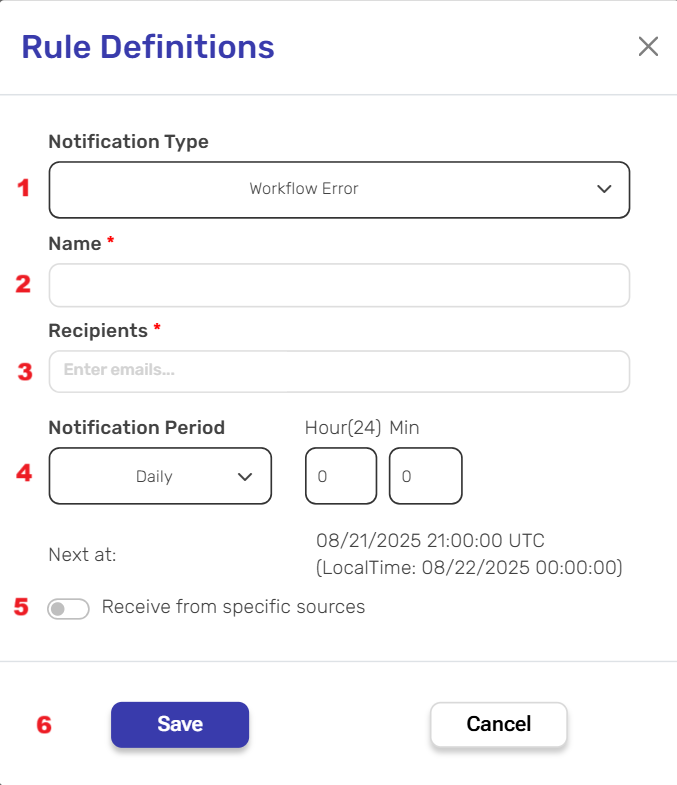
- Notification Type
From the drop-down list, select Workflow Error. - Name
Enter a descriptive name for the rule. This will help you identify it later. - Recipients
Provide one or more email addresses that should receive the notification. - Notification Period
Frequency of notification sending:- Weekly – Once per week (specify day, hour, and minutes).
- Daily – Once per day (specify hour and minutes).
- Hourly – Once per hour (specify minutes).
- Immediate – Sent immediately when error occurs.
- Receive from specific sources
Toggle this option on to apply the rule only to specific workflows.
By doing so, notifications will be limited to the selected workflows rather than all workflows in the system.
If this option is left off, the rule will apply to all workflows you have in the account by default.- A list of your workflows will appear, allowing you to select one or more workflows from the dropdown.
- Use the search bar to quickly find a workflow by name.
- Save/Cancel
- Click Save to apply the rule and activate notifications.
- Click Cancel to discard changes and close the window.


.png)