The Application Settings panel lets you control how your app behaves and who can access it. It allows you to configure the app’s entry flow and manage user permissions all in one place.
How to Access the Settings #
On the main screen of your Engini’s App, you can find the setting button on the top bar.
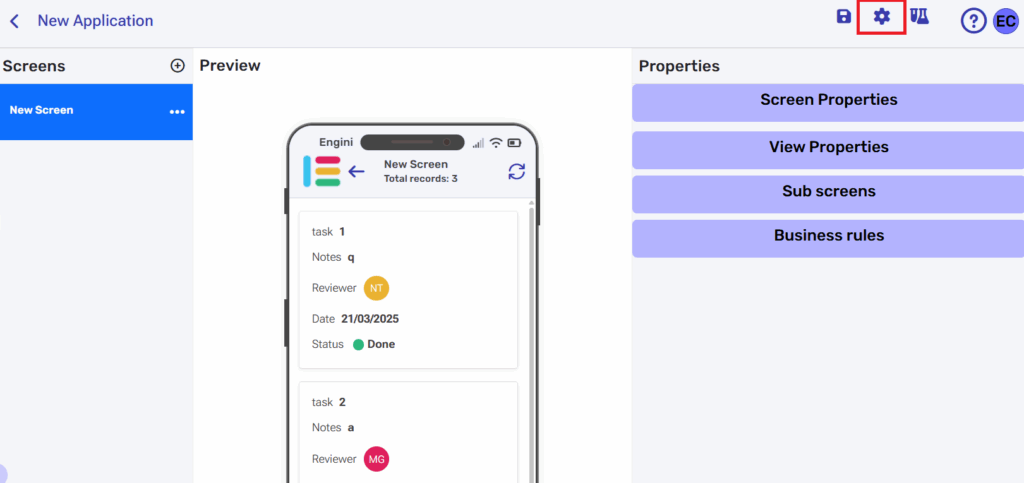
Click on the settings menu the next popup window will appear.
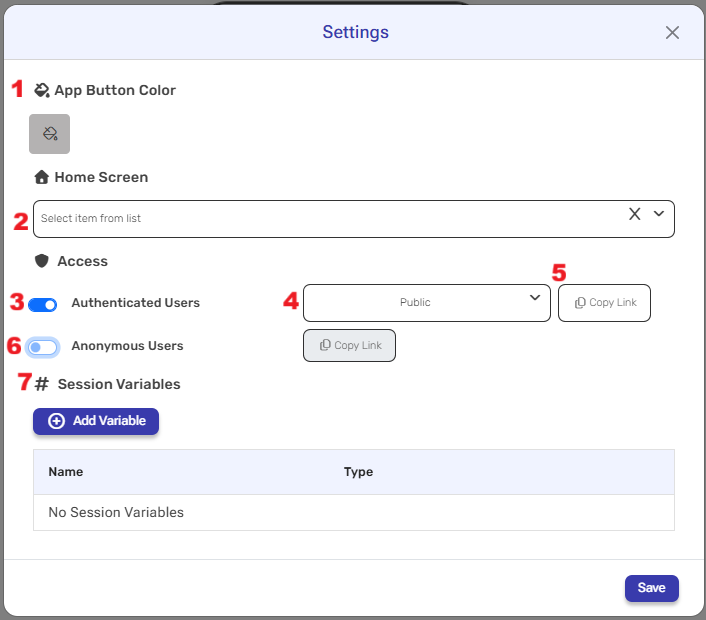
1. App Button Color #
This option lets you choose the color of your application’s tile as it appears on the main Apps page. 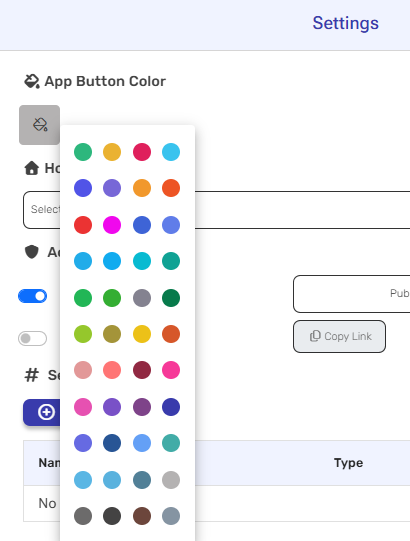
Changing this color helps visually distinguish your app from others apps and makes it easier for users to identify it quickly.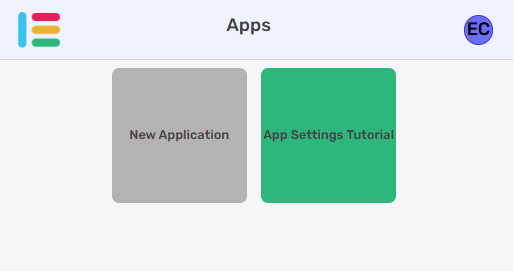
2.Home Screen #
The Home Screen option lets you choose which screen the user will see first when opening the app. You simply select one of your existing screens from the list, and that screen becomes the app’s starting point.
3. Authenticated Users #
This setting controls which logged-in users are allowed to access the application. You can choose between Public (all authenticated users) or Private (only specific users or roles). This ensures that only the intended users can open and use the app.
4. Public Or Private #
Click the tooltip and choose between a private access or an open one, Public access.
5. Copy Link #
Clicking Copy Link copies the app’s access URL to your clipboard. Paste it into any browser to open the application immediately.
6. Anonymous Users #
When this option is enabled, the application can be accessed by anyone. By using the anonymous user link, the app is publicly available and no sign-in to Engini is required.
7. Session Variables #
Session Variable is a temporary value that the app stores only for the current user session. This means the variable exists while the user is using the app.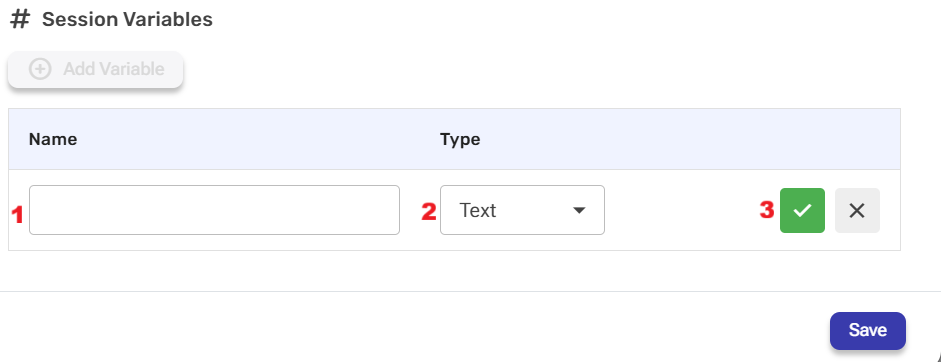
- Press on Add Variable button and choose a Name and the Type of the variable:
- Name
Customize the name to describe the field’s purpose. - Type
Click on the “Type” button and the tooltip will popup showing the field’s types you can use. - Variable Saved
Press the V Button to save the variable.
- Name
- Note: You can use these variables in filters within the app’s properties section and in business rules.
Session Variable Use Case #
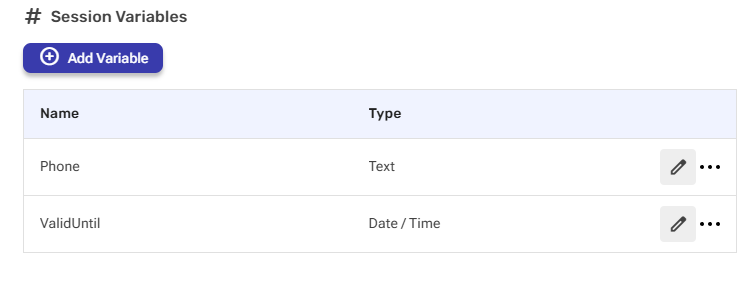
This guide explains how the Phone and ValidUntil session variables store the user’s details during the session. When the user enters a phone number and clicks the Login button, the system verifies the number, updates the session, and allows anonymous access for the next 8 hours.
- Session Variables
We created 2 session variables- Phone, ValidUntil. These variables hold the user’s details for the duration of their session.
Note: The values are stored only for the current session and reset automatically when the app is closed or refreshed. - Entering a Phone Number on the Screen
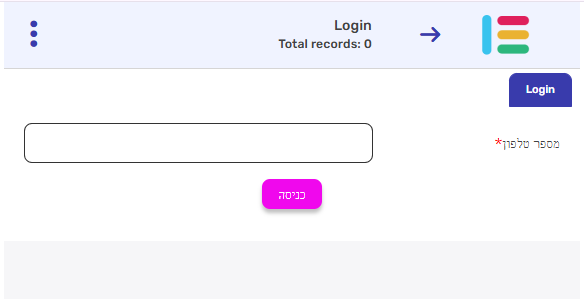
Clicking on “כניסה” button – it will activate a business rule. - Business Rule
Once the user clicks the Login button on the screen, a business rule is triggered.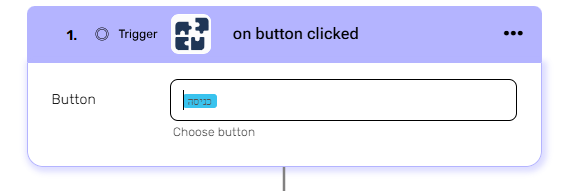
- Get Records
We check whether this phone number exists in our system (in the table).
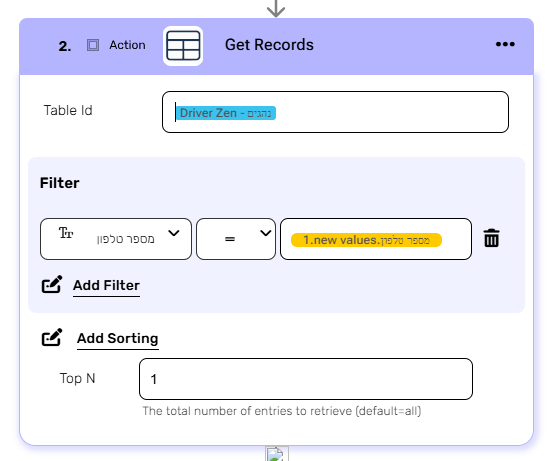
- If yes
- Update session variables
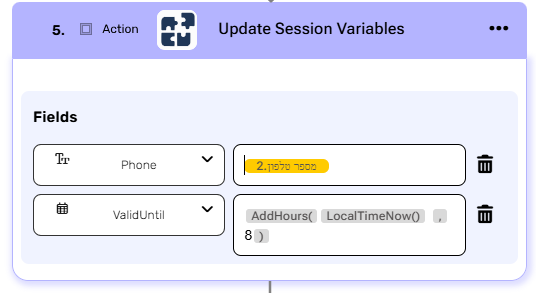
This action updates the phone number in the session and sets the ValidUntil value to 8 hours from now, allowing the user to access the app without logging in during that period. - Open Form
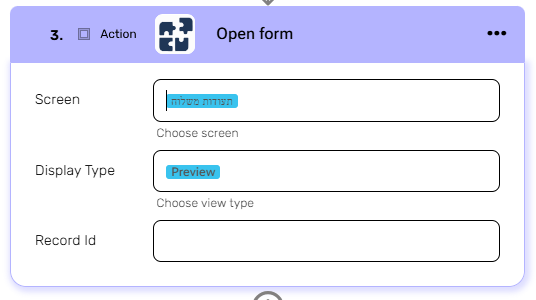
The user is navigated directly to the delivery documents screen.
- Update session variables
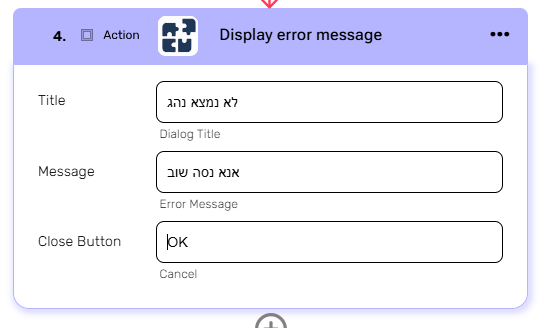
- If No, we are displaying error message to the user.


.png)