Learn how to connect Engini to bambooHR.
Using Engini’s bambooHR activities, you can get all open tasks, the list of employees’ employment history, a list of work history for a list of employees, company employee fields, and mark a task as complete.
To get started, create an account at bambooHR.
Add a connection to bambooHR in Engini #
- Enter your Engini account at https://app.engini.io.
- Navigate to Connections page by clicking on the Connections on the left sidebar or by clicking here.
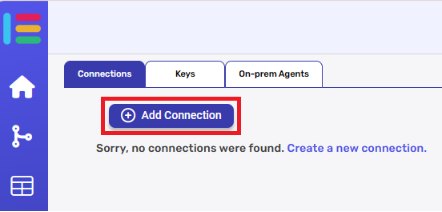
- Click on the Add connection option located at the topbar.
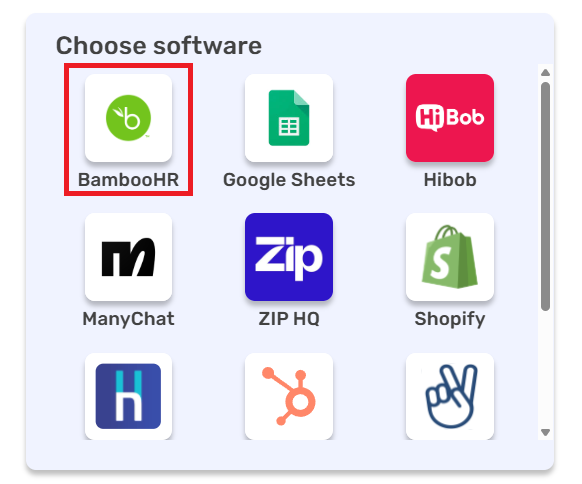
- Choose “bambooHR” option from available applications
5. Enter the following details in the “Add Connection” form:
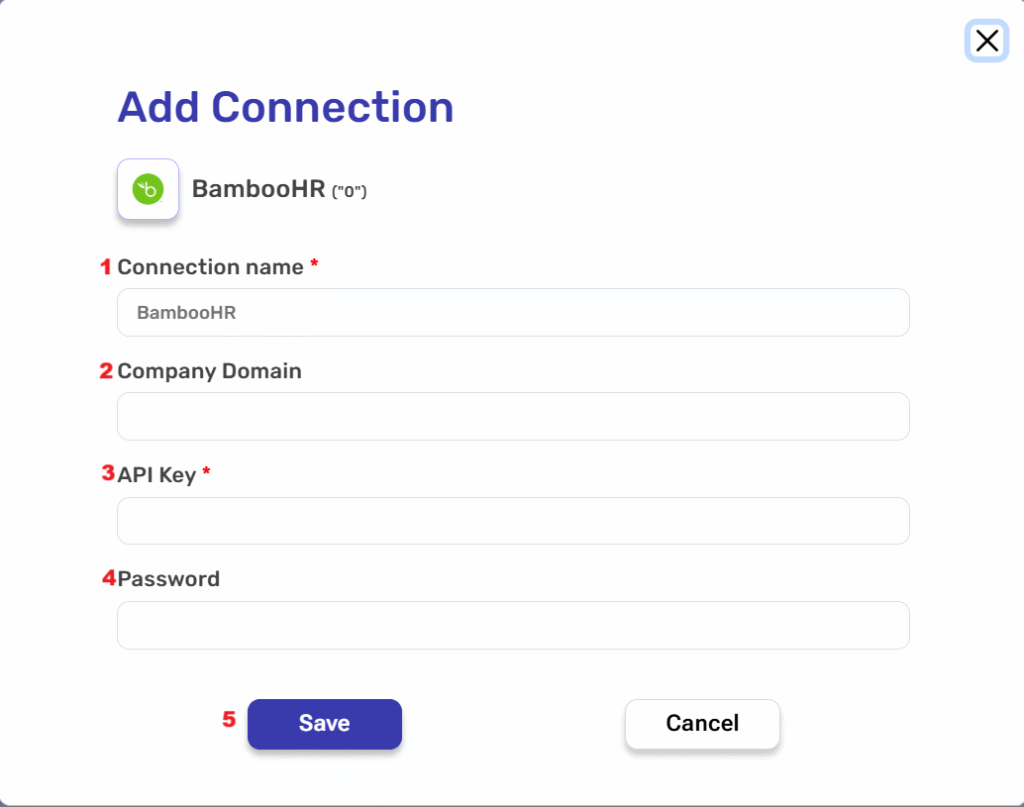
- Connection name – Enter a unique name for this connection. This name will help you identify and manage the connection in your Engini account.
- Company Domain – Enter the company-specific domain of your BambooHR URL. For example, in “http://mycompany.bamboohr.com”, the Company Domain is “mycomapny”.
- Api key – Enter the API key you generated in your BambooHR account (this acts as your “username” for the API).
- Password – Enter a password for the provided username.
- After signing in, click on the Save button to save the connection.
Triggers #
Engini has one trigger for bambooHR. This trigger is an automated trigger that activates when a new employee is added in bambooHR.
Watch for added Employees #
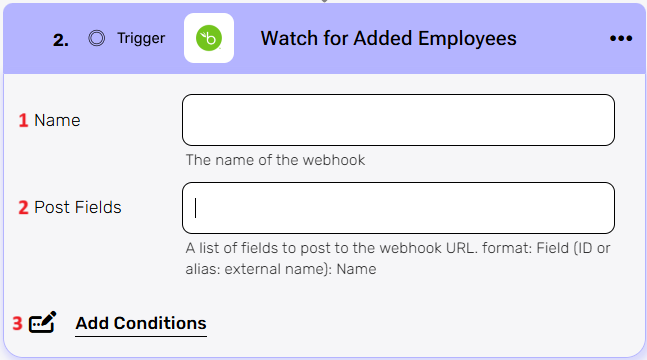
- Name – Enter a name for the webhook.
- Post Fields – Enter the list of fields to post to the webhook URL in the format: for example – name: firstname.
- Add Condition – Click on the Add condition button to Set criteria that must be met before the workflow runs.
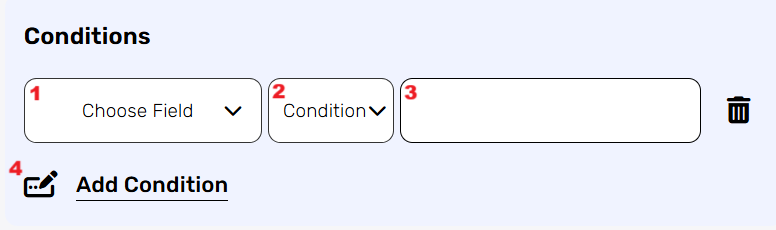
By choosing to add a condition, the workflow will only work if the condition or the number of conditions you added are met. Follow the next steps to add conditions:
- Select from the drop down the field you want to add the condition on.
- Select the condition you want to meet.
- Click on the empty field and the tooltip will pop up showing the options you can choose.
- You can populate the field in one of the following options:
- Static value – number / string. when using strings, you need to surround them with single quotes (‘).
- Property value from a previous activity (Using the tooltip that opens when clicking on the field).
- Expression – using functions and/or Previous activity properties and/or static values (Using the tooltip that opens when clicking on the field).
- You can populate the field in one of the following options:
- Repeat steps 1-3 for all the fields you want to populate.
Activities #
Add Employee #
This activity creates a new employee record in your BambooHR account.
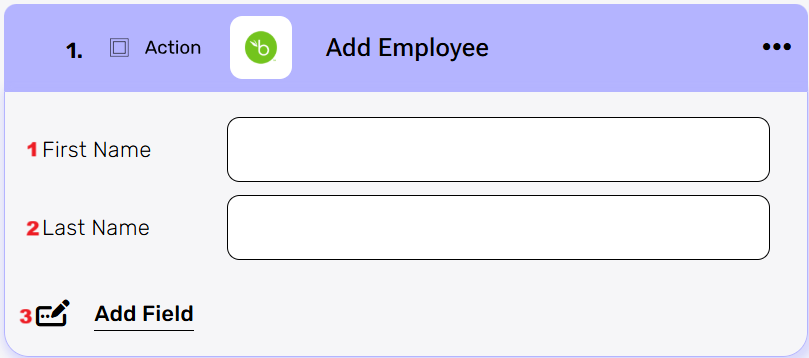
- First Name – Enter the employee’s first name.
- Last Name – Enter the employee’s last name.
- Add fields – Click on Add Fields to provide additional employee details.
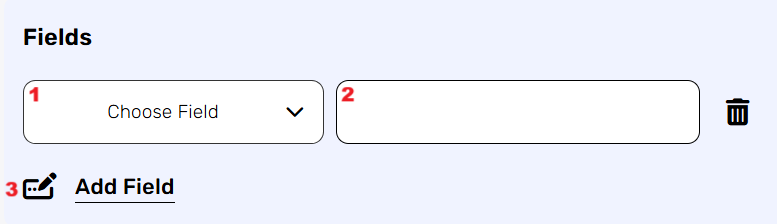
- Click Choose Field to select the field from the drop-down list (e.g., Address, Birth Date, City, Country, Department).
- Click on the empty field to the right of the drop down to be shown the tooltip with all the options you can use to fill the field.
- You can populate the field in one of the following options:
- Static value – number / string. when using strings, you need to surround them with single quotes (‘).
- Property value from a previous activity (Using the tooltip that opens when clicking on the field).
- Expression – using functions and/or Previous activity properties and/or static values (Using the tooltip that opens when clicking on the field).
- You can populate the field in one of the following options:
- Repeat steps 1-2 for all the fields you want to populate.
Change A Request Status #
This action allows you to change the status of an existing request by specifying its ID, selecting a new status, and optionally adding a note.
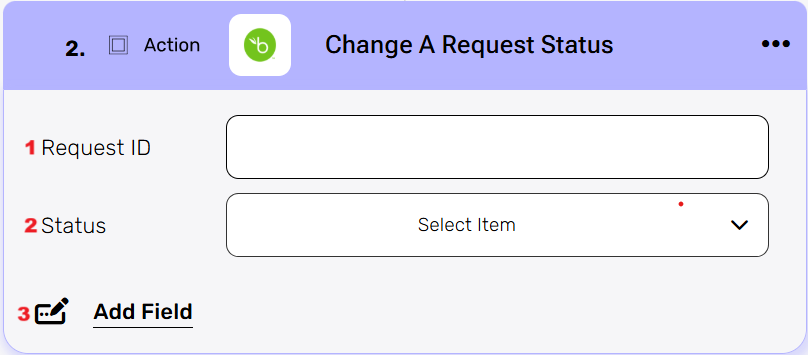
- Request ID – The unique identifier of the request you want to update.
- Status – Select the new status for the request (e.g., Approved, Cancelled, Denied).
- Add field – Click on Add Field to include additional information related to the request status change.
- You can choose Note from the drop-down list.
- Type any relevant comments or details in the box next to it.
- Repeat steps 1-2 for all the fields you want to populate.
Delete Employee File #
This activity Removes a specific file from an employee’s profile.
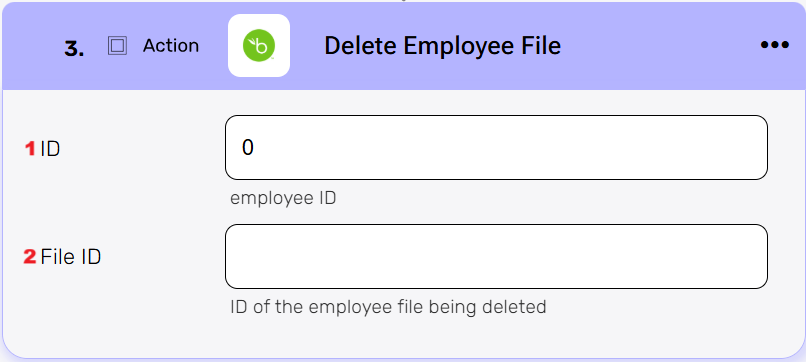
- ID– Enter the unique identifier of the employee whose file you want to delete.
- File ID – Enter the unique identifier of the file to be deleted from the employee’s profile.
Get a list of absent Employess #
This activity fetches a list of employees who are out of the office within a specified date range.
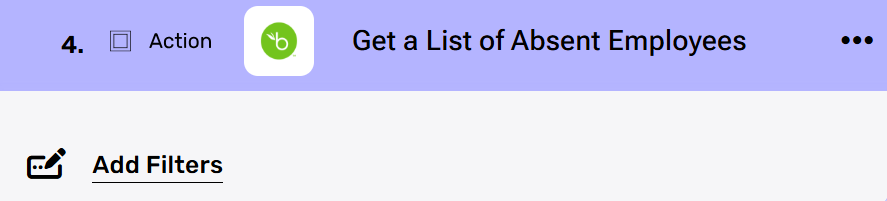
- Add Filters – By clicking the Add Filter button, you can set conditions to narrow down the list of absent employees.
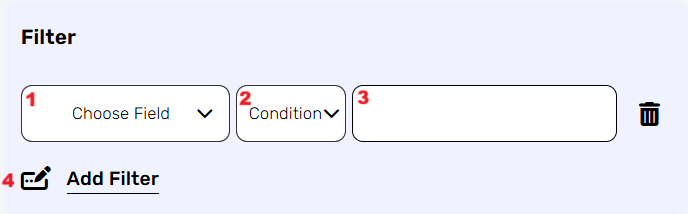
- Click Choose Field to select the data field you want to filter by. In this case, you can choose either Start (absence start date) or End (absence end date).
- Click Condition to select the operator you want to apply (e.g., equals, before, after, between).
- In the empty field on the right, enter the date in the format YYYY-MM-DD (for example, 2025-08-11).
- Repeat steps 1-3 for all the fields you want to populate.
Get All Updates Employee IDs #
This activity fetches a list of employee IDs that have been created, updated, or deleted since a specified date and time.
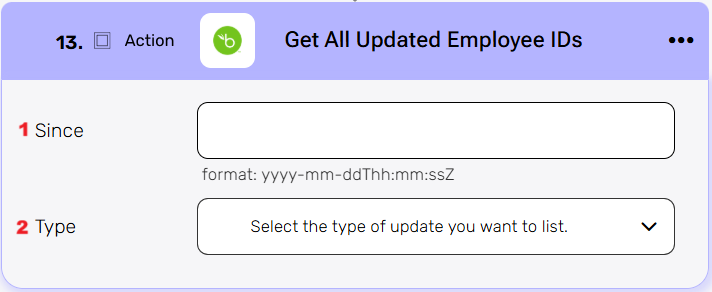
- Since – Select the date and time to start checking for changes, in the format yyyy-mm-ddThh:mm:ssZ. The Z Indicates UTC time, replace with +/-HH:MM for other time zones.
- Type – Choose the type of update you want to list:
- Deleted – Employees whose records have been removed.
- Inserted – Newly added employess.
- Updated – Employees whose records have been modified.
Get An employee File #
This activity Retrieves a specific file from an employee’s profile.
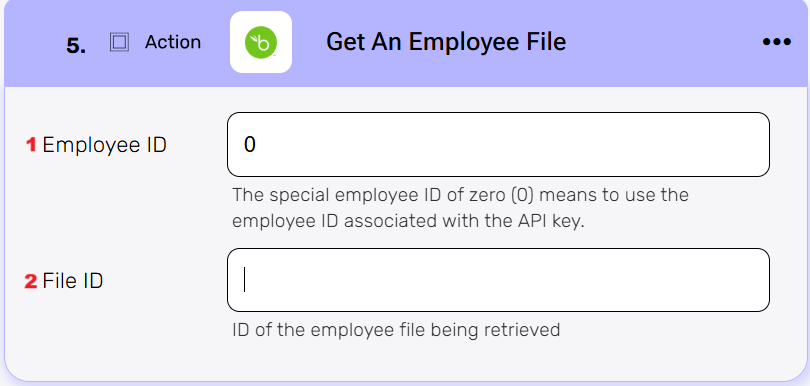
- Employee ID – Enter unique identifier of the employee whose file you want to retrive.
- File ID – Enter the unique identifier of the file to be retrieved from the employee’s profile.
Get Employee #
This activity retrieves details of a specific employee using their employee ID.
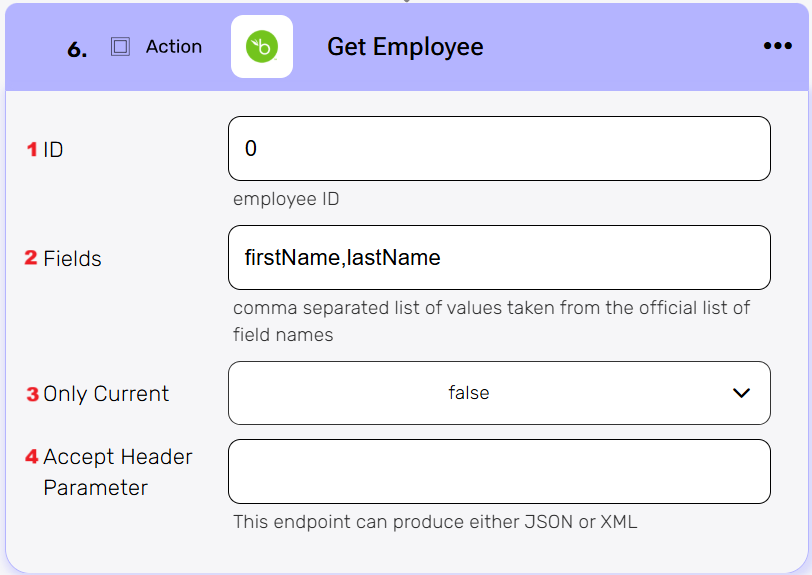
- ID – Enter the unique identifier of the employee whose details you want to retrieve.
- Fields – Enter a comma-separated list of BambooHR field names you want to retrieve for the specified employee.
- OnlyCurrent – Choose whether to return only the employee’s current information (true) or all historical records (false).
- AcceptHeaderParameter – Click the empty field to open the selection menu and choose the format in which you want the response data:
- application/json – indicates that the response body contains data in JSON format.
- application/xml – indicates that the response body contains data in JSON format.
Get a list of Employees #
This activity retrieves a complete list of all employees.

Get Time Off Request #
This activity Returns a list of employee time-off requests within a specified date range.
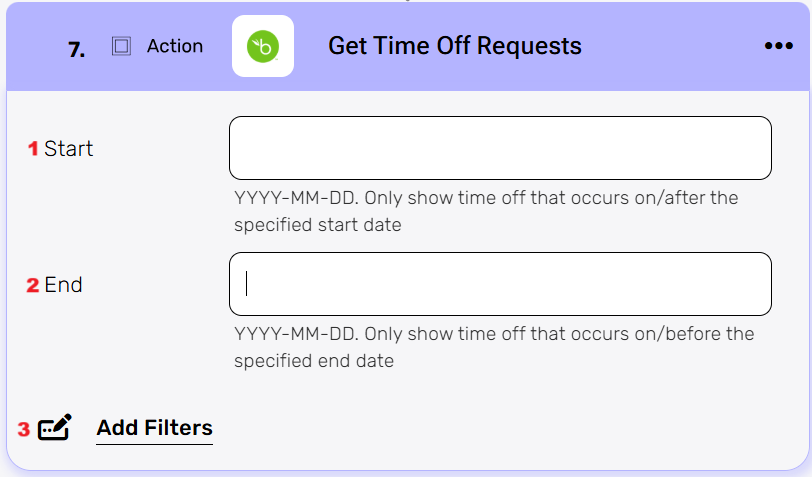
- Start – Choose the start date in YYYY-MM-DD format. Only requests occurring on or after this date will be shown.
- End – Choose the end date in YYYY-MM-DD format. Only requests occurring on or before this date will be shown.
- Add Filters – By clicking the Add Filter button, you can apply specific conditions for retrieving only the relevant time off requests.
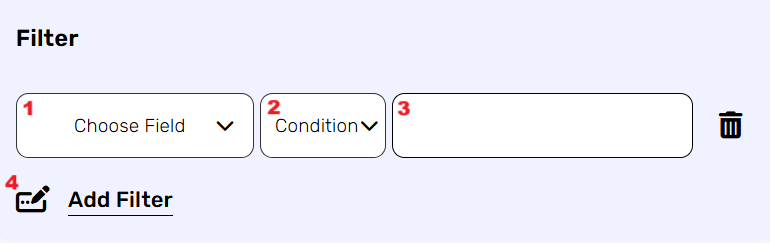
- Click Choose Field to select the field from the drop-down list (e.g., action, ID, Status, Type).
- Click Condition to choose the operator you want to apply.
- Click on the empty field to the right of the drop down to be shown the tooltip with all the options you can use to fill the field.
- You can populate the field in one of the following options:
- Static value – number / string. when using strings, you need to surround them with single quotes (‘).
- Property value from a previous activity (Using the tooltip that opens when clicking on the field).
- Expression – using functions and/or Previous activity properties and/or static values (Using the tooltip that opens when clicking on the field).
- You can populate the field in one of the following options:
- Repeat steps 1-3 for all the fields you want to populate.
List Employee Files and Categories #
Retrieves all files and their associated categories for a specific employee.
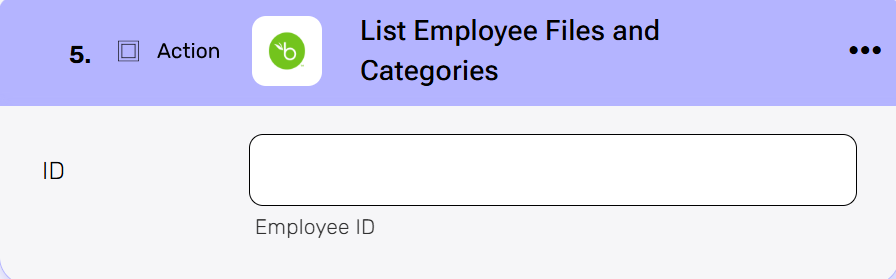
- ID – Enter the unique identifier of the employee whose files and categories you want to list.
Request a Custom Report #
Generate a custom report in the selected output format.
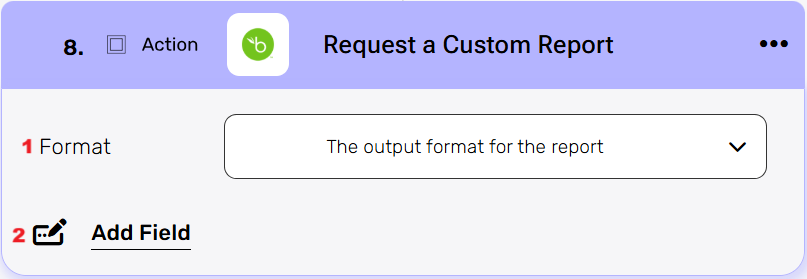
- Format – Generates a custom report from BambooHR in the selected output format.
- CSV – Indicates that the request body contains CSV text data.
- JSON – Indicates that the request body contains JSON text data.
- PDF – Indicates that the request body contains PDF text data.
- XLS – Indicates that the request body contains XLS text data.
- XML- Indicates that the request body contains X text data.
- Add field – By clicking the Add Field button, you can define the parameters for generating the custom report.
- Click Choose Field and select the field you want to include from the drop down list (e.g., Fields, Only Current, Title).
- Click on the empty field to the right of the drop down to be shown the tooltip with all the options you can use to fill the field.
- You can populate the field in one of the following options:
- Static value – number / string. when using strings, you need to surround them with single quotes (‘).
- Property value from a previous activity (Using the tooltip that opens when clicking on the field).
- Expression – using functions and/or Previous activity properties and/or static values (Using the tooltip that opens when clicking on the field).
- You can populate the field in one of the following options:
- Repeat steps 1-2 for all the fields you want to populate.
Send Api Request #
Enables sending a custom API request to bambooHR with full control over the request details.
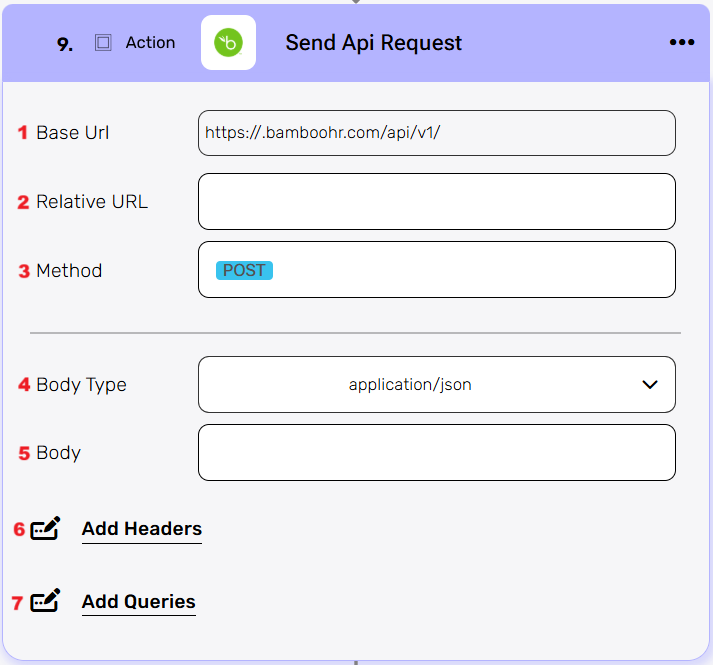
- Base Url – he base URL for QuickBooks API calls. This is pre-filled with your company -specific address.
- Relative Url – Enter the specific endpoint path (relative to the base URL).
- Method – Specifies the type of request being made.
- Get – Requests a resource from the server.
- Post – Submits data to be processed by the server (by default).
- Put – Used to update or replace an existing resource on the server.
- Delete – Used to request the removal of a resource on the server.
- Patch – Used to partially update or modify an existing resource on the server. It is similar to the PUT method, but instead of replacing the entire resource, PATCH allows you to specify only the changes or updates to be applied to the resource.
- Body Type – Choose the format of the request body type:
- application/json – Indicates that the request body contains JSON text data.
- application/x-www-form-urlencoded – indicates that the request body contains URL-encoded form data (key–value pairs).
- file – indicates that the request body contains a file upload.
- multipart/form-data – Indicates that the request body contains multiple parts, often used for uploading files along with text fields.
- text/html – Indicates that the request body contains HTML text data.
- text/plain – Indicates that the request body contains plain text data.
- text/xml – Indicates that the request body contains X text data.
- Body – Contains any data that is being sent to the server.
- Add Headers – Additional metadata about the request, such as the type of data the Engini can accept, the length of the request body, and authentication information.
- Click on the “Add Headers” button to add a header.
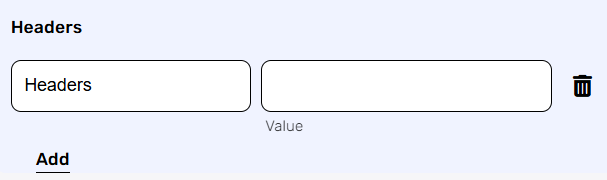
- Click on the headers field to enter the key, and on the value field to enter a value. Each header consists of a key-value pair, where the key is the name of the parameter, and the value is the data associated with that parameter.
- Click on the “Add” button to add more Headers.
- Click on the “Add Headers” button to add a header.
- Add Queries – The query refers to the parameters or data that are included in the URL of an HTTP request to provide additional information or instructions to the server.
- Click on the “Add Queries” button to add a header.
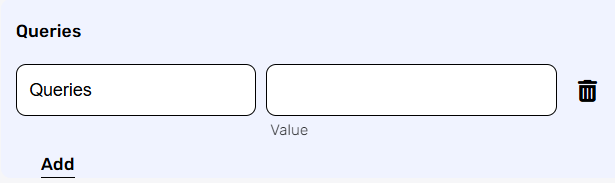
- Click on the queries field to enter the key, and on the value field to enter a value.
Each query consists of a key-value pair, where the key is the name of the parameter, and the value is the data associated with that parameter. - Click on the “Add” button to add more queries.
- Click on the “Add Queries” button to add a header.
Update Employee #
This activity updates an employee’s details using their ID, allowing changes to one or more fields such as first name, last name, and other attributes.
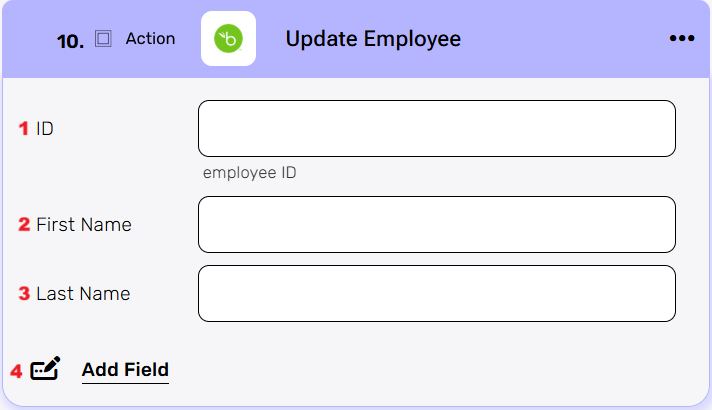
- ID – Enter the unique identifier of the employee whose details you want to update.
- First Name – Enter the employee’s updated first name.
- Last Name – Enter the employee’s updated last name
- Add field – By clicking the Add Field button, you can specify additional employee details to update beyond the First Name and Last Name.
- Click Choose Field and select the field you want to include from the drop down list (e.g., Fields, Only Current, Title).
- Click on the empty field to the right of the drop down to be shown the tooltip with all the options you can use to fill the field.
- You can populate the field in one of the following options:
- Static value – number / string. when using strings, you need to surround them with single quotes (‘).
- Property value from a previous activity (Using the tooltip that opens when clicking on the field).
- Expression – using functions and/or Previous activity properties and/or static values (Using the tooltip that opens when clicking on the field).
- Repeat steps 1-3 for all the fields you want to populate.
Upload Employee File #
This activity uploads a file to an employee’s record, letting you specify the file’s category, name, and who can see it.
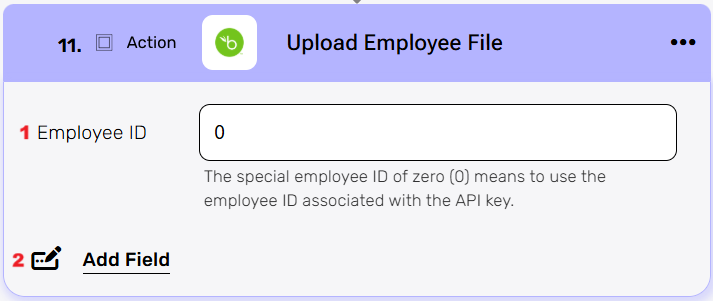
- Employee ID – Enter the unique ID of the employee. Using
0will associate the file with the employee linked to the API key. - Add Field – By clicking the Add Field button, you can define the details of the file being uploaded for the employee.
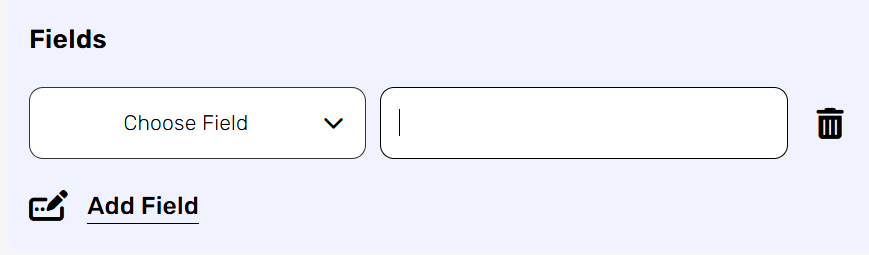
- Click Choose Field and select the field you want to update from the drop down list (e.g,. Category, File, File Name, Share).
- Click on the empty field to the right of the drop-down to view the tooltip with all available options to fill the field.
- Repeat the steps for all the fields you want to populate.
Update Employee File #
This activity updates an existing file on an employee’s record, allowing you to change its category, name, or visibility settings.
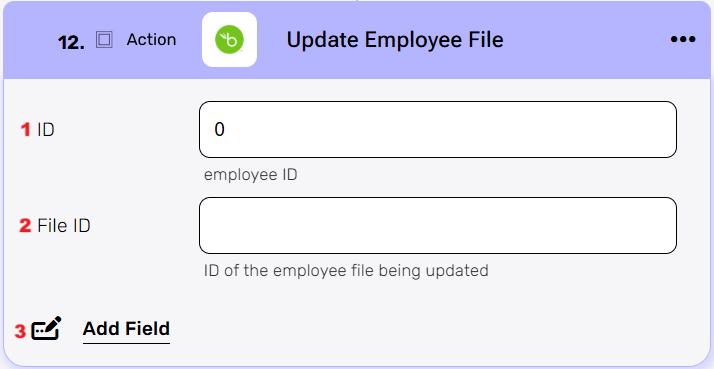
- ID – Enter the employee’s ID. Choose 0 to use the employee ID associated with the API key.
- File ID – Enter the unique ID of the employee file you want to update.
- Add Field – By clicking the Add Field button, you can update specific properties of the employee file.
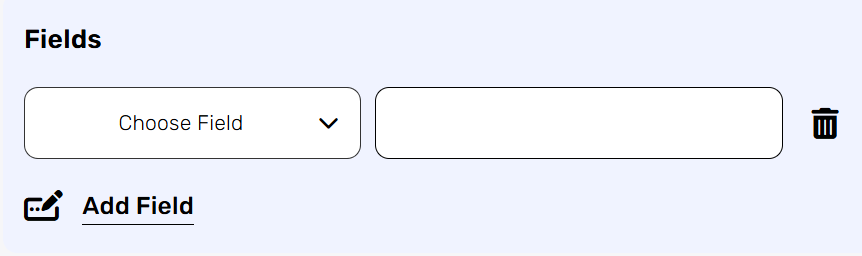
- Click Choose Field and select the field you want to update from the drop down list (e.g,. Category ID, Name, Share with Employee).
- Click on the empty field to the right of the drop-down to view the tooltip with all available options to fill the field.
- Repeat the steps for all the fields you want to populate.


.png)