Learn how to connect Wolt to Engini!
Connecting Engini to Wolt #
- Enter your Engini account at https://app.engini.io.
- Navigate to Connections page by clicking on the Connections on the left side bar or by clicking here.
- Click on the “New Integration” option located at the top bar.

- Choose “Wolt” option from available applications.
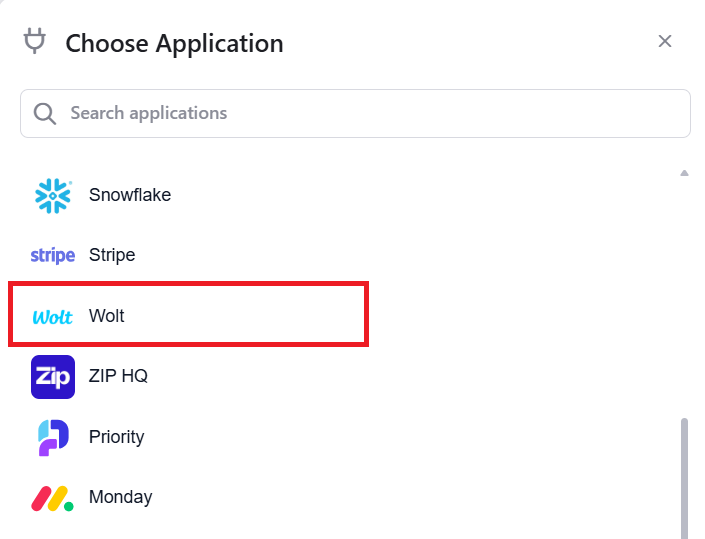
- Enter the following details in the “Add Connection” form:
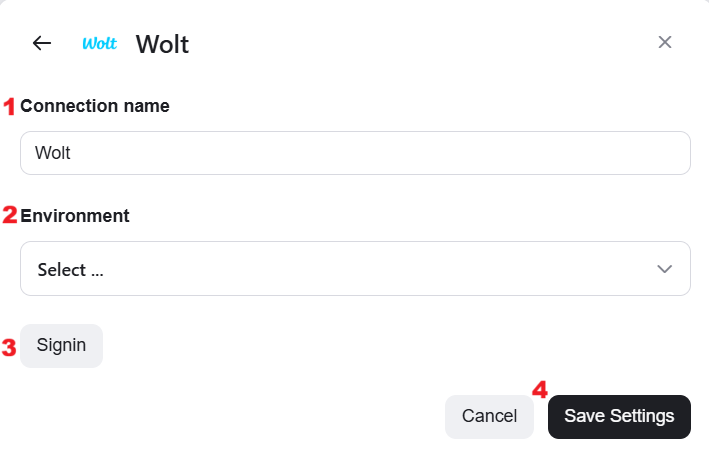
- Connection name – A unique identifier for the connection within Engini
- Environment – Choose one of the environment:
- Production– The Production environment is the “live” version of the API where real business happens.
- Sandbox– The Sandbox is your “practice field.” It is an isolated testing environment where you can build and test your application without any real-world consequences.
- Signin – Click Signin and log in with the Wolt account used to create the project. This ensures access to the correct OAuth credentials and permissions.
- Click on the Save button to the save the connection.
Triggers #
Order Notification Trigger #
A webhook message sent from Wolt to Engini whenever an order’s status changes.
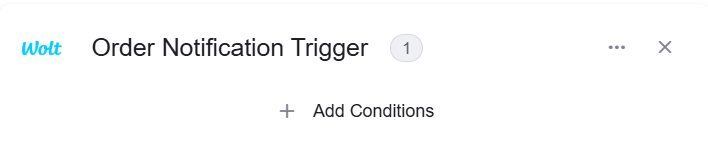
Add Condition – By choosing to add a condition, the workflow will only work if the condition or the number of conditions you added are met:

- Select from the drop down the field you want to add the condition on.
- Select the condition you want the record to meet.
- Click on the empty field and the tooltip will pop up showing the options you can choose. You can populate the field in one of the following options:
- Static value – number / string. when using strings, you need to surround them with single quotes (‘).
- Property value from a previous activity (Using the tooltip that opens when clicking on the field).
- Expression – using functions and/or Previous activity properties and/or static values (Using the tooltip that opens when clicking on the field).
- Repeat steps 1-3 for all the fields you want to populate.
Actions #
Accept Order #
Sent from your system to Wolt to confirm you have received and started preparing the order.
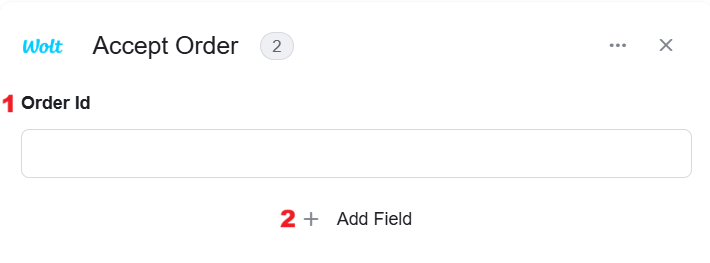
- Order Id – Provide the unique identification string for the order you are accepting.
- Add Field – Click Add field to update more fields of the item.
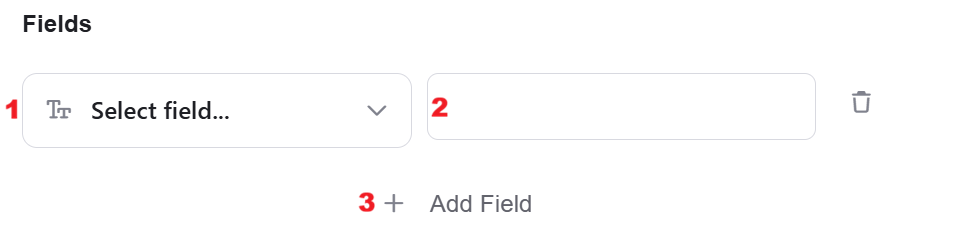
- Choose from the drop down the field you want to fill.
- Click on the empty field to the right of the drop down to be shown the tooltip with all the options you can use to fill the field.
- You can populate the field in one of the following options (Depending on the column type, please refer to the column types reference):
- Static value – number / string. when using strings, you need to surround them with single quotes (‘).
- Property value from a previous activity (Using the tooltip that opens when clicking on the field).
- Expression – using functions and/or Previous activity properties and/or static values (Using the tooltip that opens when clicking on the field).
- Repeat steps 1-3 for all the fields you want to populate.
Create a Menu #
This activity allows you to create a menu.
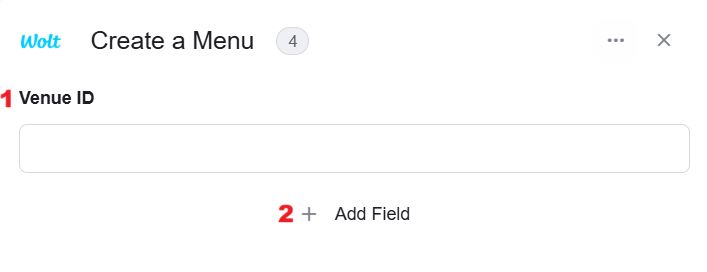
- Venue ID – Provide a unique identification code assigned by Wolt to a specific venue.
- Add Field – Click Add field to update more fields of the item.
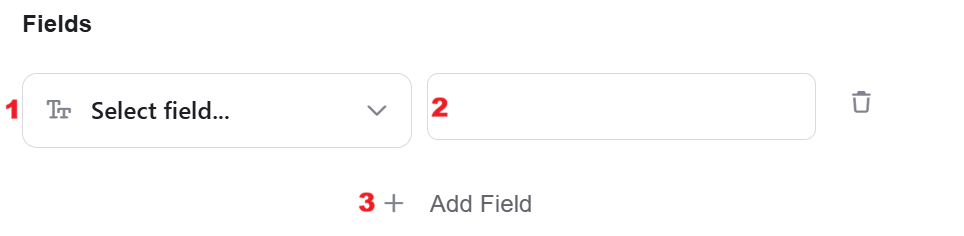
- Choose from the drop down the field you want to fill.
- Click on the empty field to the right of the drop down to be shown the tooltip with all the options you can use to fill the field.
- You can populate the field in one of the following options:
- Static value – number / string. when using strings, you need to surround them with single quotes (‘).
- Property value from a previous activity (Using the tooltip that opens when clicking on the field).
- Expression – using functions and/or Previous activity properties and/or static values (Using the tooltip that opens when clicking on the field).
- You can populate the field in one of the following options:
- Repeat steps 1-3 for all the fields you want to populate
Object Array Fields : Some fields in the Create a Menu activity are object arrays, meaning they accept a list of objects, not a single value.
- Categories[] (Required)
The menu must include at least one category.
Each category is added as a separate object inside the categories array. - Name[] / Description[] (Translations)
Category and item names are provided as translation arrays.
Each entry includes a language (lang) and its text value (value). - Nested objects
Categories[] can include additional nested data such as items, availability windows, and item configuration.
These are also defined as arrays inside the parent object.
How to build the structure
Start by initializing the object array (e.g., categories).
Then append one object at a time (one category, one item, etc.), following the same nesting hierarchy.
Required
To create a valid menu, the following fields are required:
- Currency
- Primary Language
- Categories
Each one of them is an array of objects. The array is initialized using Intialize Object Array, and each object is added to it with Append to Object Array. In case of a single object, the Append to Object Array is not required.
Get Current Delivery Provider #
This activity checks and retrieve who is currently responsible for delivering your orders.
Get Menu #
This activity retrieve the current menu that is live on the Wolt.
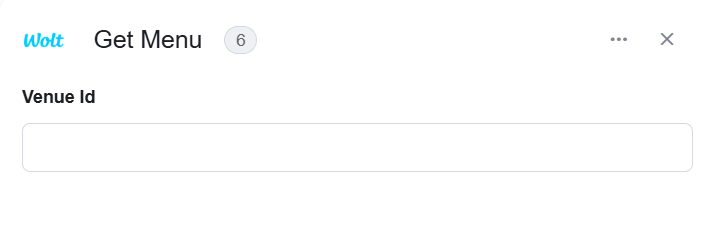
Venue Id– Provide a unique identification code assigned by Wolt to a specific menu.
Get order #
This activity retrieve the complete details of a specific order from Wolt.
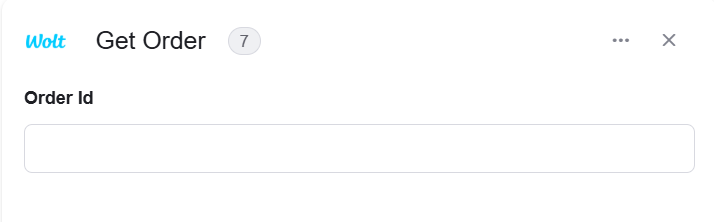
Order Id – Provide a unique identification code assigned by Wolt to a specific order.
Get Timeslots for Next 7 Days for a Venue #
This activity retrieves the schedule of available delivery or pickup windows for a specific store over the coming week.
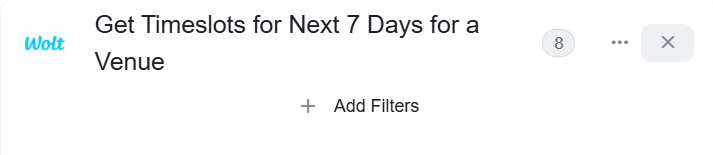
Add Filters – You can specify which timeslots will be returned from the search results by utilizing the “Add Filter” button.
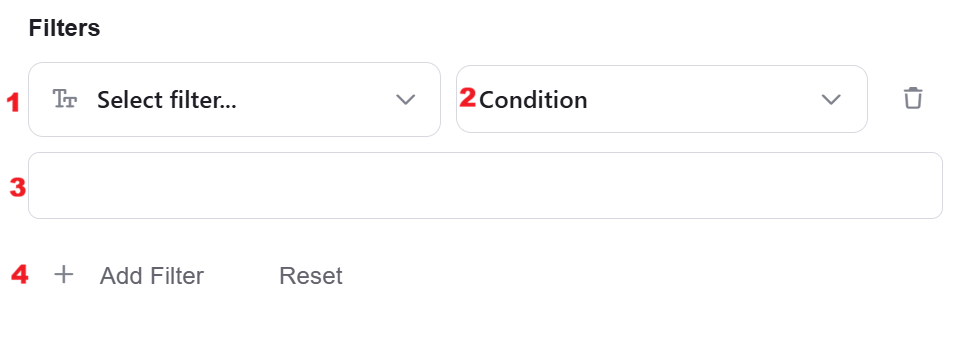
- Choose from the drop down the field you want to filter by.
- Select the condition you want the record to meet for the selected field.
- You can populate the field in one of the following options:
- Static value – number / string. when using strings, you need to surround them with single quotes (‘).
- Property value from a previous activity (Using the tooltip that opens when clicking on the field).
- Expression – using functions and/or Previous activity properties and/or static values (Using the tooltip that opens when clicking on the field).
- You can populate the field in one of the following options:
- Repeat steps 1-3 for all the fields you want to populate.
Get Venue Status #
This activity retrieves whether a specific store is currently open and able to receive new orders on the Wolt app.

Mark Deposits Returned #
This activity tells Wolt that you have successfully returned the deposit to a customer for a specific order.
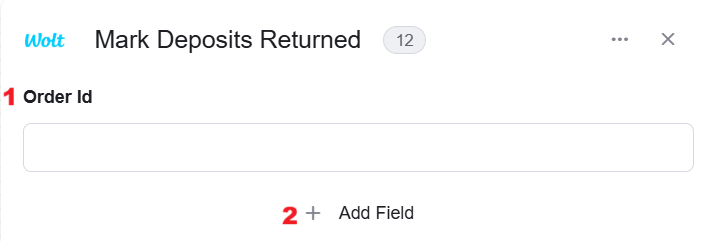
- Order Id – Provide a unique identification id assigned by Wolt to a specific order.
- Add Field – By clicking the “Add field” button, you can choose how to fill in various fields.
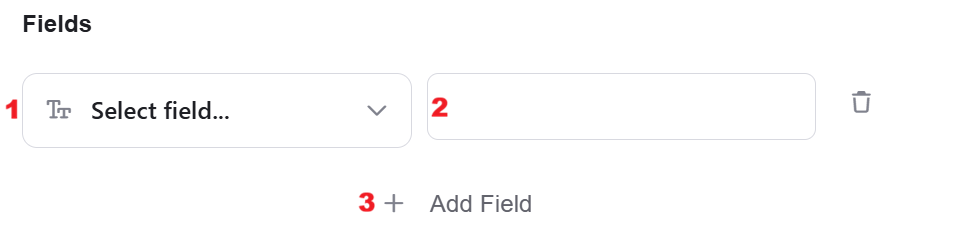
- Choose from the drop down the field you want to fill.
- Click on the empty field to the right of the drop down to be shown the tooltip with all the options you can use to fill the field.
- You can populate the field in one of the following options:
- Static value – number / string. when using strings, you need to surround them with single quotes (‘).
- Property value from a previous activity (Using the tooltip that opens when clicking on the field).
- Expression – using functions and/or Previous activity properties and/or static values (Using the tooltip that opens when clicking on the field).
- You can populate the field in one of the following options:
- Repeat steps 1-2 for all the fields you wish to populate
Object Array Fields :
- Items [] – Required, List of returned deposit items.
Is an array of objects. The array is initialized using Intialize Object Array, and each object is added to it with Append to Object Array. In case of a single object, the Append to Object Array is not required.
Mark Order Delivered #
This activity tells Wolt that the order has been successfully handed over to the customer.
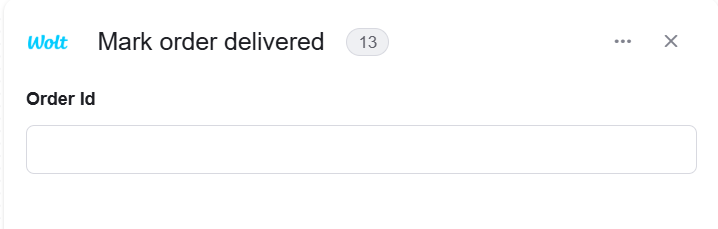
Order Id – Provide a unique identification code assigned by Wolt to a specific order.
Mark Order Ready #
This activity notifies Wolt that the order has been prepared and is now waiting to be picked up.
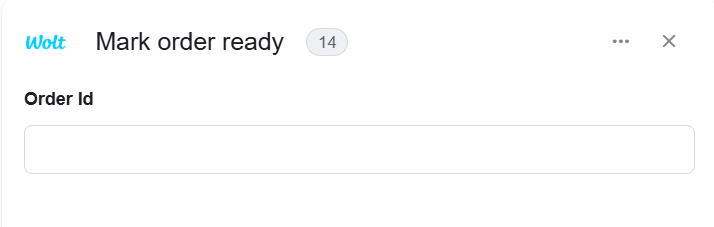
Order Id – Provide a unique identification code assigned by Wolt to a specific order.
Mark Pickup Completed #
This activity tells Wolt that the courier or customer has physically picked up the order from your store.
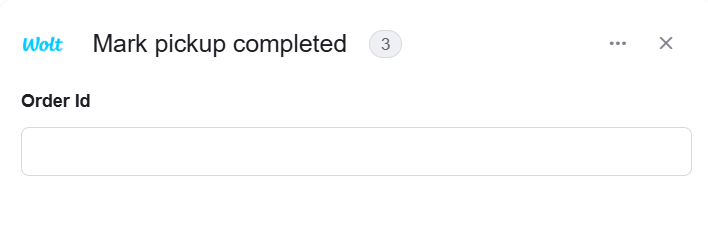
Order Id – Provide a unique identification code assigned by Wolt to a specific order.
Reject Order #
This activity allows you to decline an order.
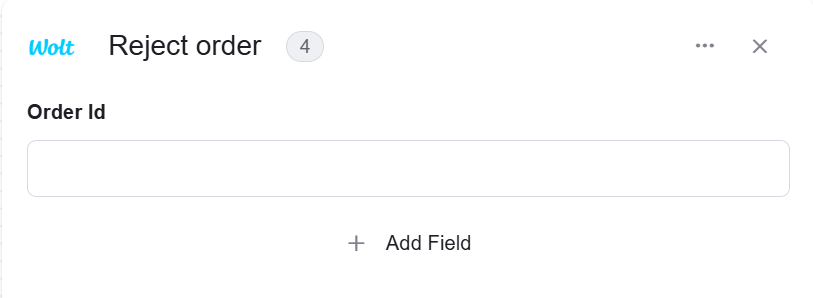
Order Id – Provide a unique identification code assigned by Wolt to a specific order.
Update Delivery Provider #
This activity update the delivery Provider.
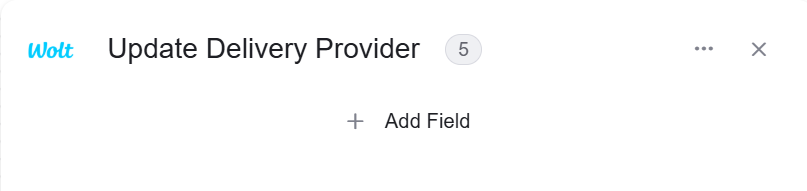
Add Field – By clicking the “Add field” button, you can choose how to fill in various fields.
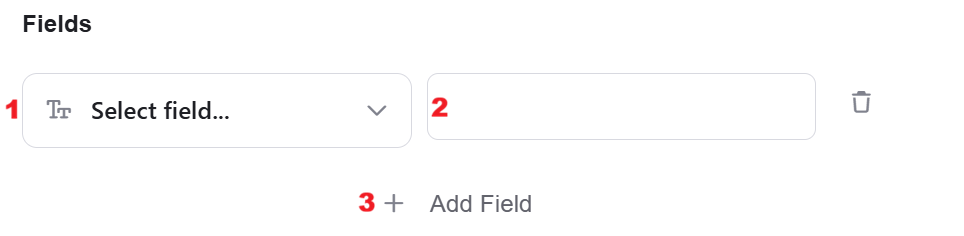
- Choose from the drop down the field you want to fill.
- Click on the empty field to the right of the drop down to be shown the tooltip with all the options you can use to fill the field.
- You can populate the field in one of the following options:
- Static value – number / string. when using strings, you need to surround them with single quotes (‘).
- Property value from a previous activity (Using the tooltip that opens when clicking on the field).
- Expression – using functions and/or Previous activity properties and/or static values (Using the tooltip that opens when clicking on the field).
- You can populate the field in one of the following options:
- Repeat steps 1-2 for all the fields you wish to populate
Update Menu’s Item Inventory #
This activity lets you quickly update how much of a specific item you have left in stock.
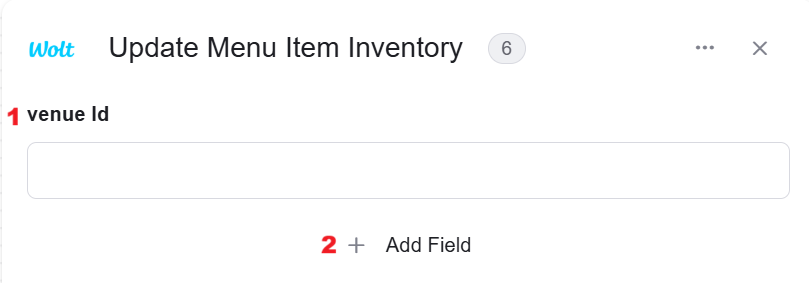
- Venue Id– Provide a unique identification code assigned by Wolt to a specific menu.
- Add Field – By clicking the “Add field” button, you can choose how to fill in various fields.
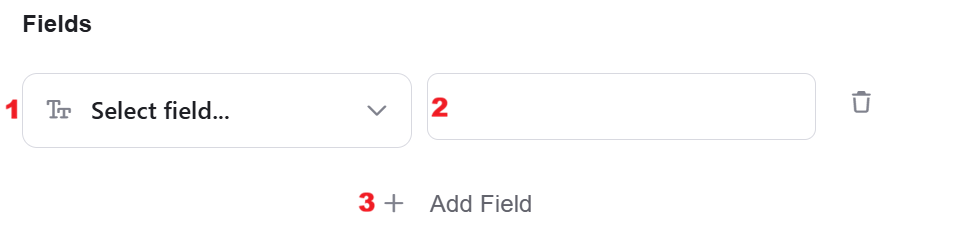
- Choose from the drop down the field you want to fill.
- Click on the empty field to the right of the drop down to be shown the tooltip with all the options you can use to fill the field.
- You can populate the field in one of the following options:
- Static value – number / string. when using strings, you need to surround them with single quotes (‘).
- Property value from a previous activity (Using the tooltip that opens when clicking on the field).
- Expression – using functions and/or Previous activity properties and/or static values (Using the tooltip that opens when clicking on the field).
- You can populate the field in one of the following options:
- Repeat steps 1-2 for all the fields you wish to populate
Object Array Fields :
- Data [] – Item inventories to update. You must define either external id, gtin or sku fields for each item to update
Is an array of objects. The array is initialized using Intialize Object Array, and each object is added to it with Append to Object Array. In case of a single object, the Append to Object Array is not required.
Update Menu Items #
Update specific fields of menu items.
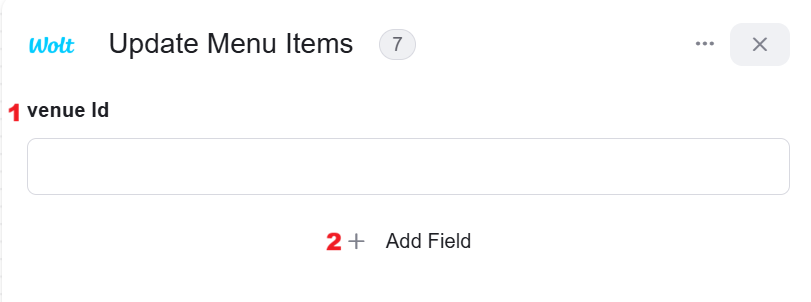
- Venue Id– Provide a unique identification id assigned by Wolt to a specific menu.
- Add Field – By clicking the “Add field” button, you can choose how to fill in various fields.
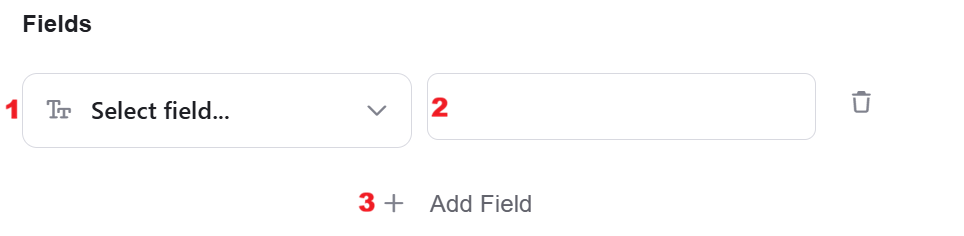
- Choose from the drop down the field you want to fill.
- Click on the empty field to the right of the drop down to be shown the tooltip with all the options you can use to fill the field.
- You can populate the field in one of the following options:
- Static value – number / string. when using strings, you need to surround them with single quotes (‘).
- Property value from a previous activity (Using the tooltip that opens when clicking on the field).
- Expression – using functions and/or Previous activity properties and/or static values (Using the tooltip that opens when clicking on the field).
- You can populate the field in one of the following options:
- Repeat steps 1-2 for all the fields you wish to populate
Object Array Fields :
- Data [] – Item inventories to update. You must define either external id, gtin or sku fields for each item to update
Is an array of objects. The array is initialized using Intialize Object Array, and each object is added to it with Append to Object Array. In case of a single object, the Append to Object Array is not required.
Update Menu Options #
Update specific fields of menu options.
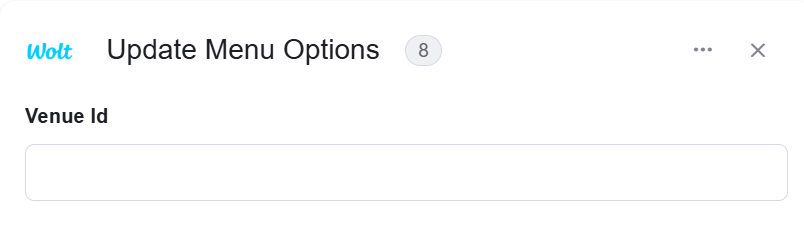
Venue Id– Provide a unique identification code assigned by Wolt to a specific menu.
Object Array Fields :
- Data [] – Item inventories to update. You must define either external id, gtin or sku fields for each item to update
Is an array of objects. The array is initialized using Intialize Object Array, and each object is added to it with Append to Object Array. In case of a single object, the Append to Object Array is not required.
Update Time Slot Order Capacities for a Venue #
Update order capacities for given timeslots for a venue.
Add Field – By clicking the “Add field” button, you can choose how to fill in various fields.
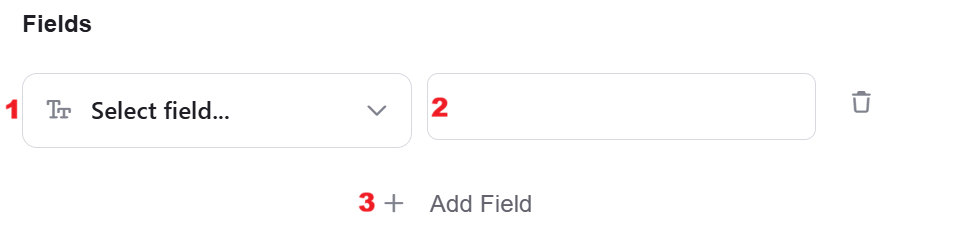
- Choose from the drop down the field you want to fill.
- Click on the empty field to the right of the drop down to be shown the tooltip with all the options you can use to fill the field.
- You can populate the field in one of the following options:
- Static value – number / string. when using strings, you need to surround them with single quotes (‘).
- Property value from a previous activity (Using the tooltip that opens when clicking on the field).
- Expression – using functions and/or Previous activity properties and/or static values (Using the tooltip that opens when clicking on the field).
- You can populate the field in one of the following options:
- Repeat steps 1-2 for all the fields you wish to populate
Update Venue Online #
Update the online status of the venue. This can be used to manually toggle a venue online or offline.
Add Field – By clicking the “Add field” button, you can choose how to fill in various fields.
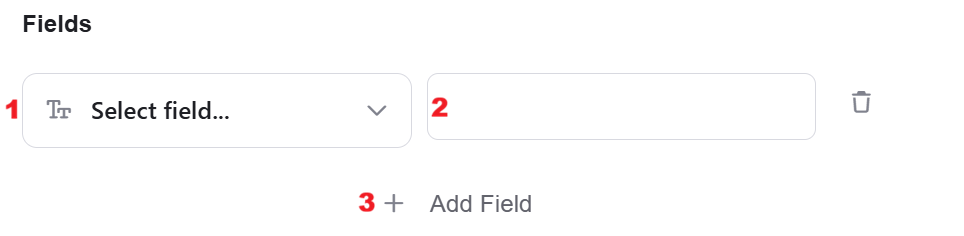
- Choose from the drop down the field you want to fill.
- Click on the empty field to the right of the drop down to be shown the tooltip with all the options you can use to fill the field.
- You can populate the field in one of the following options:
- Static value – number / string. when using strings, you need to surround them with single quotes (‘).
- Property value from a previous activity (Using the tooltip that opens when clicking on the field).
- Expression – using functions and/or Previous activity properties and/or static values (Using the tooltip that opens when clicking on the field).
- You can populate the field in one of the following options:
- Repeat steps 1-2 for all the fields you wish to populate
Update Venue Opening Times #
Update the opening times of the venue.
Add Field – By clicking the “Add field” button, you can choose how to fill in various fields.
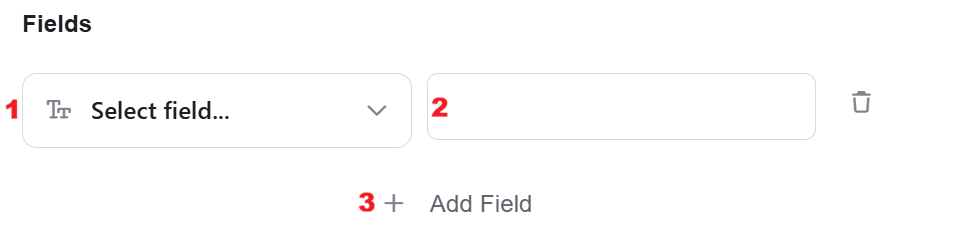
- Choose from the drop down the field you want to fill.
- Click on the empty field to the right of the drop down to be shown the tooltip with all the options you can use to fill the field.
- You can populate the field in one of the following options:
- Static value – number / string. when using strings, you need to surround them with single quotes (‘).
- Property value from a previous activity (Using the tooltip that opens when clicking on the field).
- Expression – using functions and/or Previous activity properties and/or static values (Using the tooltip that opens when clicking on the field).
- You can populate the field in one of the following options:
- Repeat steps 1-2 for all the fields you wish to populate
Object Array Fields :
- Availability [] – Venue’s operating hours.
Is an array of objects. The array is initialized using Intialize Object Array, and each object is added to it with Append to Object Array. In case of a single object, the Append to Object Array is not required.
Initialize Object Array #
This activity initializes an object array in Wolt and stores a single structured entry based on the selected object type
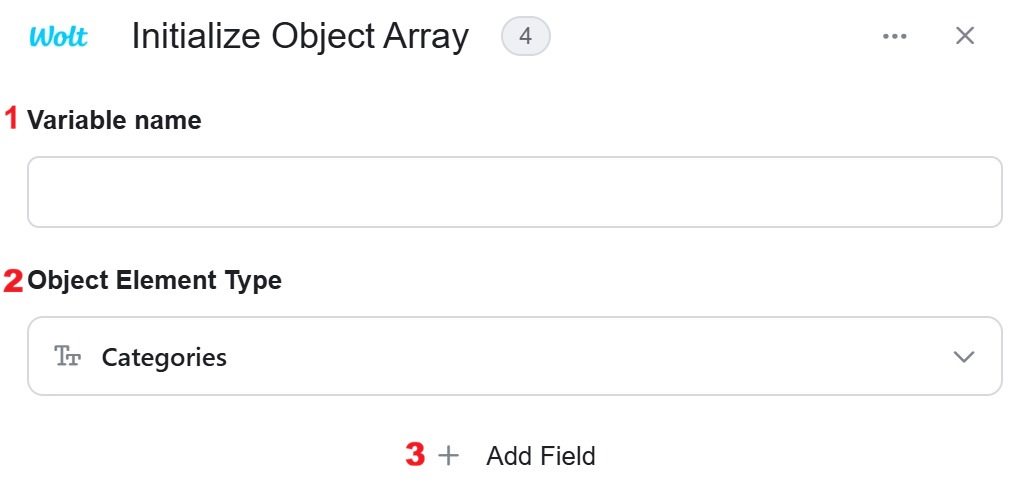
- Variable name – Choose a significant name.
- Object Element Type –Select the type of data structure you want to initialize from the dropdown options. This action prepares an empty object of the specified type that you can then populate the first object here and then later in the append action.
- Add field – By clicking the “Add field” button, you can choose how to fill in the various fields in the object you are creating. You can add one field to the activity or more fields to the activity definitions, up to the number of fields you have in the selected object. The fields vary depending on the selected object.
- Choose from the drop down the field you want to fill.
- Click on the empty field to the right of the drop down to be shown the tooltip with all the options you can use to fill the field.
- You can populate the field in one of the following options:
- Static value – number / string. when using strings, you need to surround them with single quotes (‘).
- Property value from a previous activity (Using the tooltip that opens when clicking on the field).
- Expression – using functions and/or Previous activity properties and/or static values (Using the tooltip that opens when clicking on the field).
- You can populate the field in one of the following options:
- Repeat steps 1-2 for all the fields you wish to populate
Append to Object Array #
This action allows you to add a new item to an existing object array within your workflow.
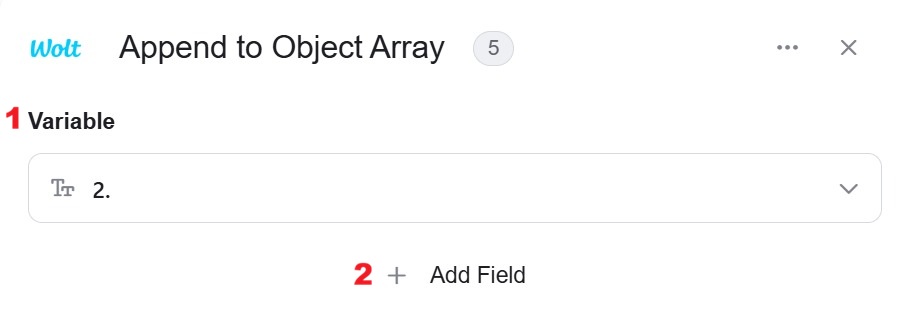
- Variable – Select the variable that contains the object array you want to append to. The chosen variable should already be defined in your workflow.
- Add field – By clicking the “Add field” button, you can choose how to fill in the various fields in the object you are appending. You can add one field to the activity or more fields to the activity definitions, up to the number of fields you have in the selected object. The fields vary depending on the selected object.
- Choose from the drop down the field you want to fill.
- Click on the empty field to the right of the drop down to be shown the tooltip with all the options you can use to fill the field.
- You can populate the field in one of the following options:
- Static value – number / string. when using strings, you need to surround them with single quotes (‘).
- Property value from a previous activity (Using the tooltip that opens when clicking on the field).
- Expression – using functions and/or Previous activity properties and/or static values (Using the tooltip that opens when clicking on the field).
- You can populate the field in one of the following options:
- Repeat steps 1-2 for all the fields you wish to populate
Map Object Array #
We use this activity when there is an array of data that requires transformation into a different structure.
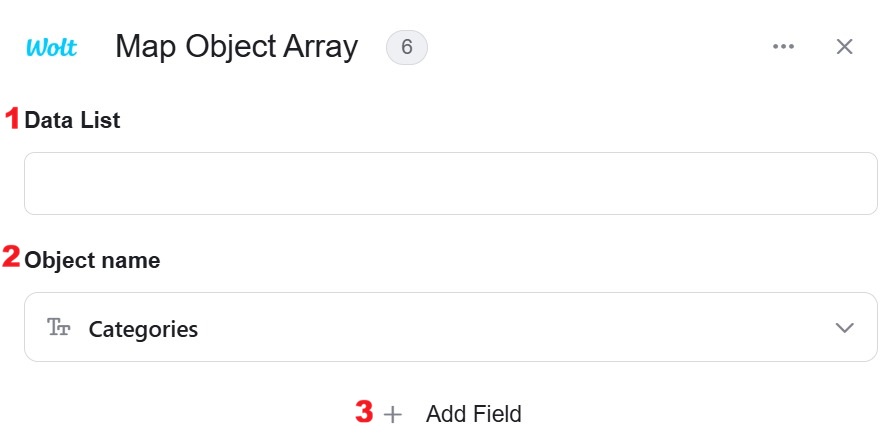
- Data List – Choose a data list that you’ve obtained from previous activities in your workflow. This data list contains an array of objects that you want to process and transform.
- Object Name – Define the type of objects from the drop down that will be stored within the array. According to the object element type you chose, the fields in step 3 will be defined. To learn more about object element types, go to ‘Object element types’.
- Add Field – By clicking the “Add field” button, you can choose how to fill in the various fields when you are mapping.
- Choose from the drop down the field you want to fill.
- Click on the empty field to the right of the drop down to be shown the tooltip with all the options you can use to fill the field.
- You can populate the field in one of the following options:
- Static value – number / string. when using strings, you need to surround them with single quotes (‘).
- Property value from a previous activity (Using the tooltip that opens when clicking on the field).
- Expression – using functions and/or Previous activity properties and/or static values (Using the tooltip that opens when clicking on the field).
- Repeat steps 1-3 for all the fields you want to populate.
- Choose from the drop down the field you want to fill.


.png)